Zoom AI Companion Setup
Zoom AI Companion auto-generates meeting summaries, transcripts, and answers questions during your meetings. Summaries and transcripts are saved as Zoom Docs you can review later. AI Companion only runs for meetings you host.
Enable AI Companion
Configure AI Companion once and it will run on every meeting you host going forward.
-
Open Settings
In Zoom Workplace, click the gear icon in the bottom left, or click your profile icon and select Settings. -
Go to AI Companion
On the General tab, scroll down to the AI Companion section and click Manage.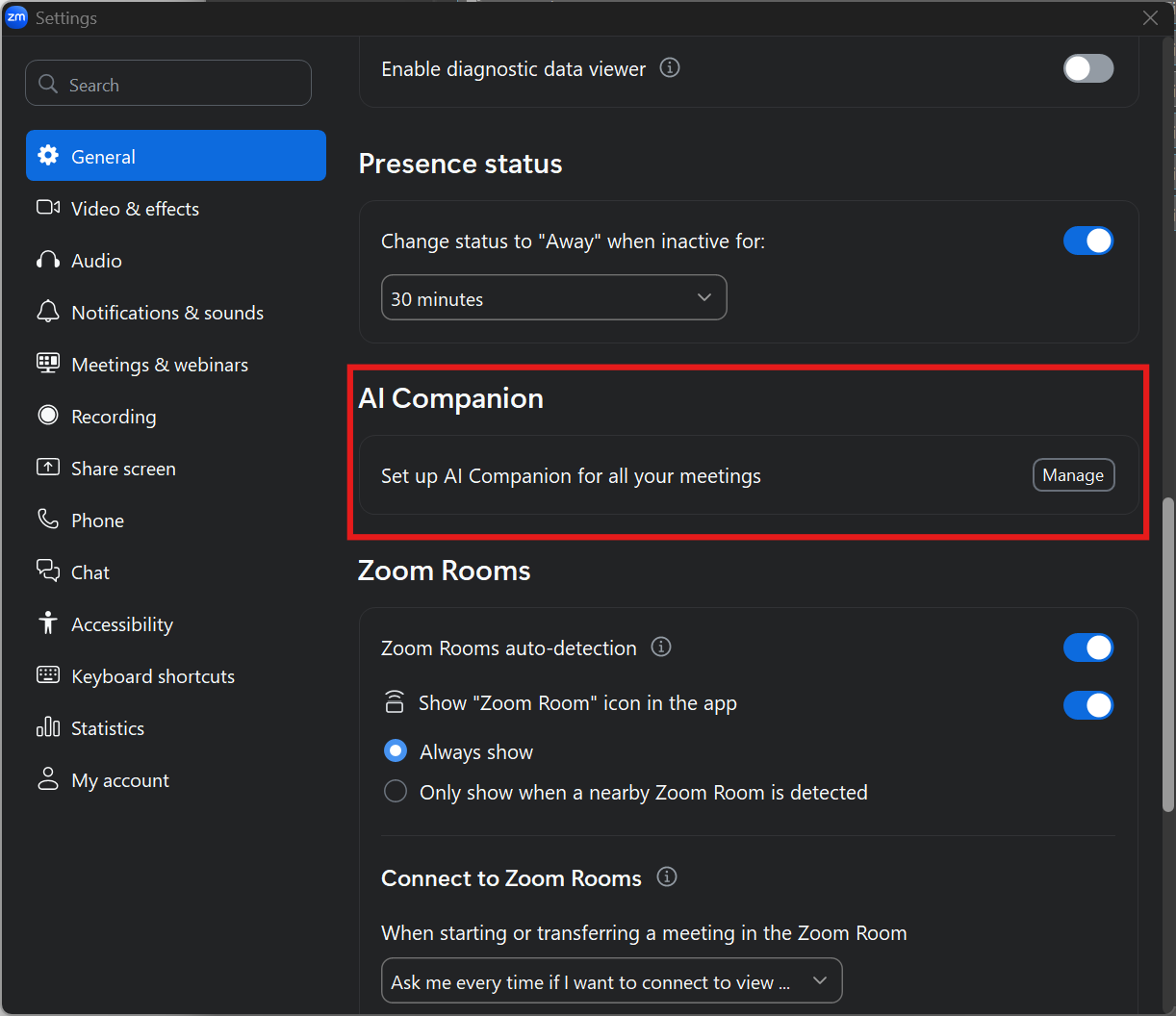
-
Configure meeting summary
Check Auto-start summary to generate a summary for every meeting you host. Check Send summary via email to email it to attendees afterward. Use the dropdown to control who the summary is shared with.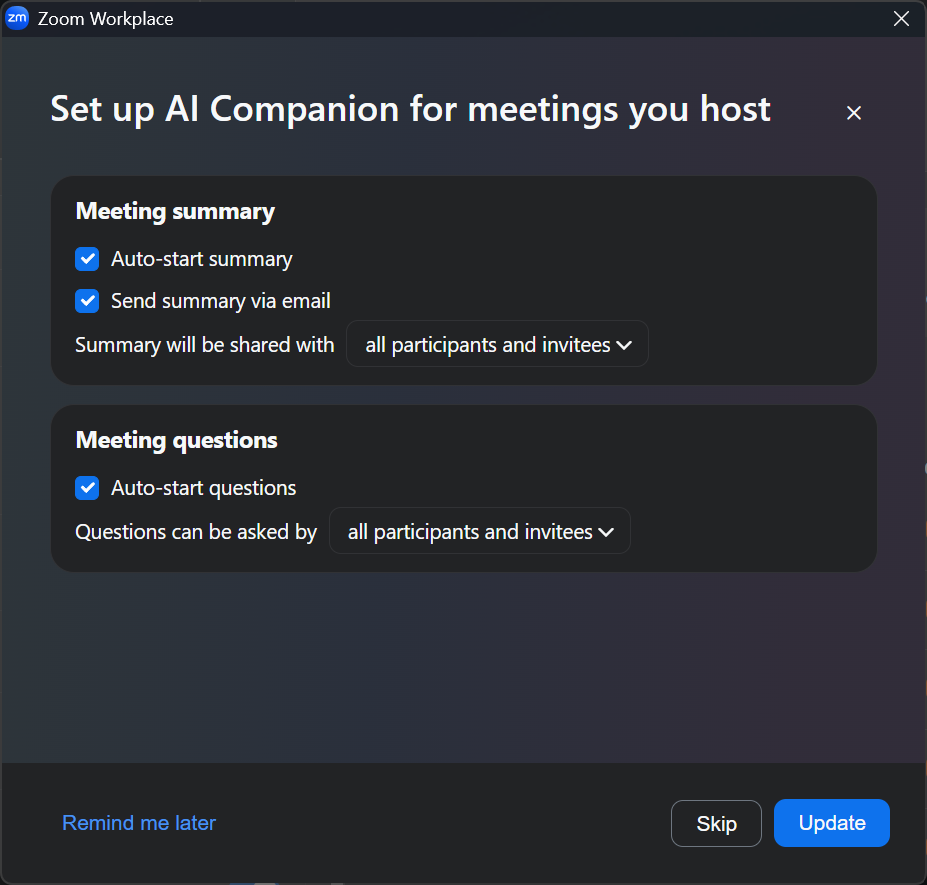
-
Configure meeting questions
Check Auto-start questions to let participants ask AI Companion questions during the meeting. Use the dropdown to control who can ask. -
Save
Click Update to apply your settings.
In-Meeting Controls
During a meeting you can check AI Companion status, ask it questions about what’s been discussed, or take personal notes alongside the transcript.
AI Companion Panel
Click the AI Companion icon in the meeting toolbar to open the panel.
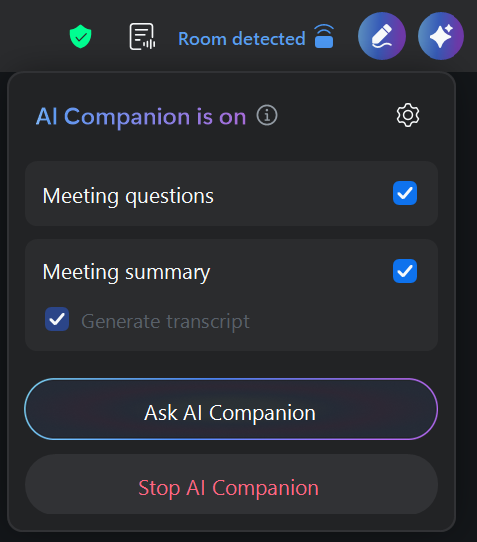
| Control | Action |
|---|---|
| Meeting questions | Toggle whether attendees can ask AI Companion questions |
| Meeting summary | Toggle the auto-summary on or off |
| Generate transcript | Sub-option under Meeting summary that records the conversation as text |
| Ask AI Companion | Opens a prompt to ask about the meeting so far |
| Stop AI Companion | Turns AI Companion off for the rest of the meeting |
My Notes
My notes lets you take personal notes alongside the live transcript. The combined output is your own Zoom Doc, separate from the host’s AI Companion summary. Any attendee can use it.
-
Open My notes
Click the My notes icon in the meeting toolbar.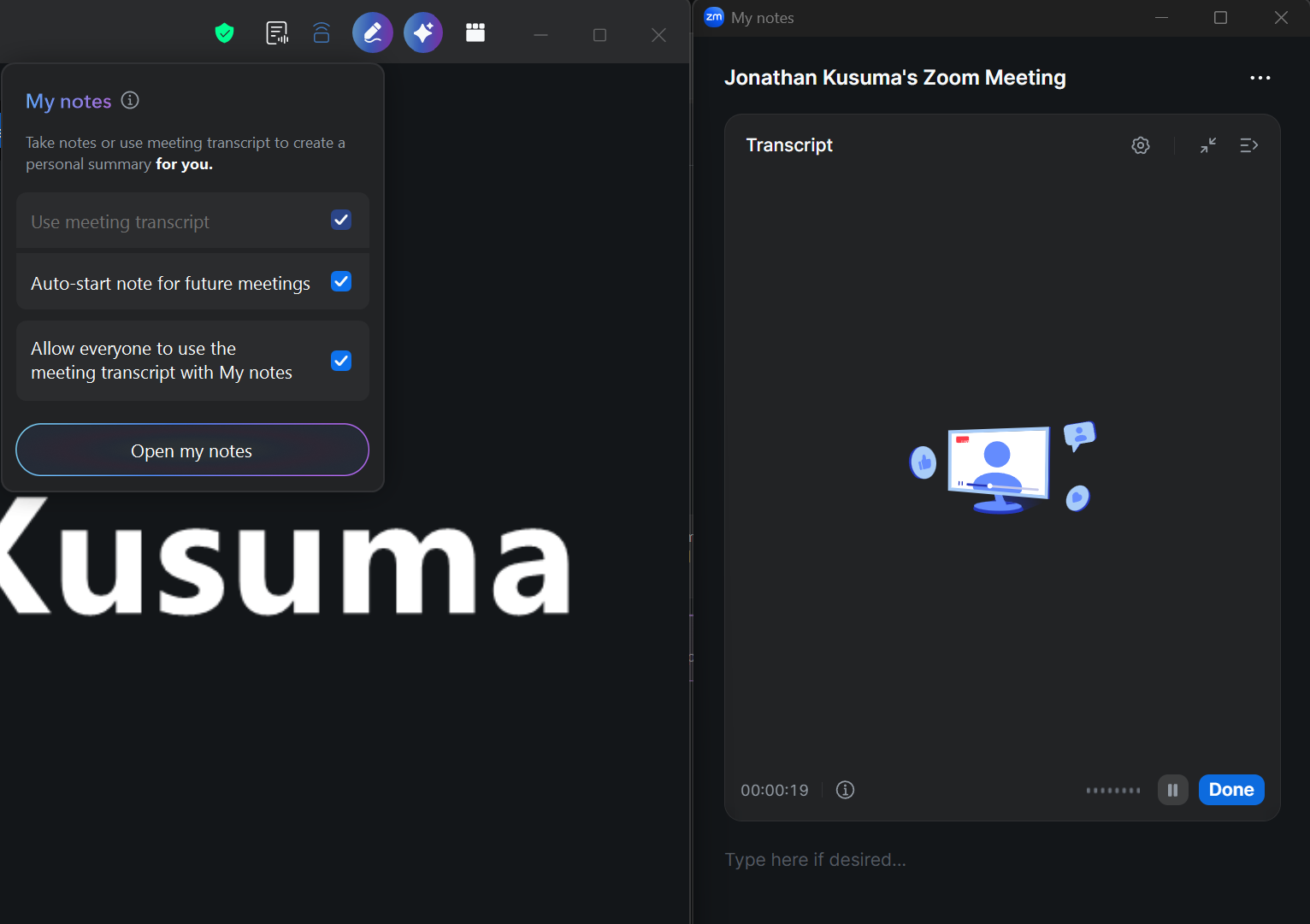
-
Set options
Check Use meeting transcript to combine your notes with the transcript. Check Auto-start note for future meetings so My notes runs in every meeting going forward. Check Allow everyone to use the meeting transcript with My notes to let other attendees access the same transcript. -
Open the notes window
Click Open my notes. A side window opens showing the live transcript and a text field for your own notes. -
Type as you go
Add your notes in the Type here if desired… field while the transcript records in the background. -
Finish
Click Done when the meeting ends to save your notes and transcript.
Access Meeting Summaries and Transcripts
After a meeting ends, AI Companion saves the summary and transcript as a Zoom Doc.
-
Open Docs
In Zoom Workplace, click More in the left sidebar and select Docs.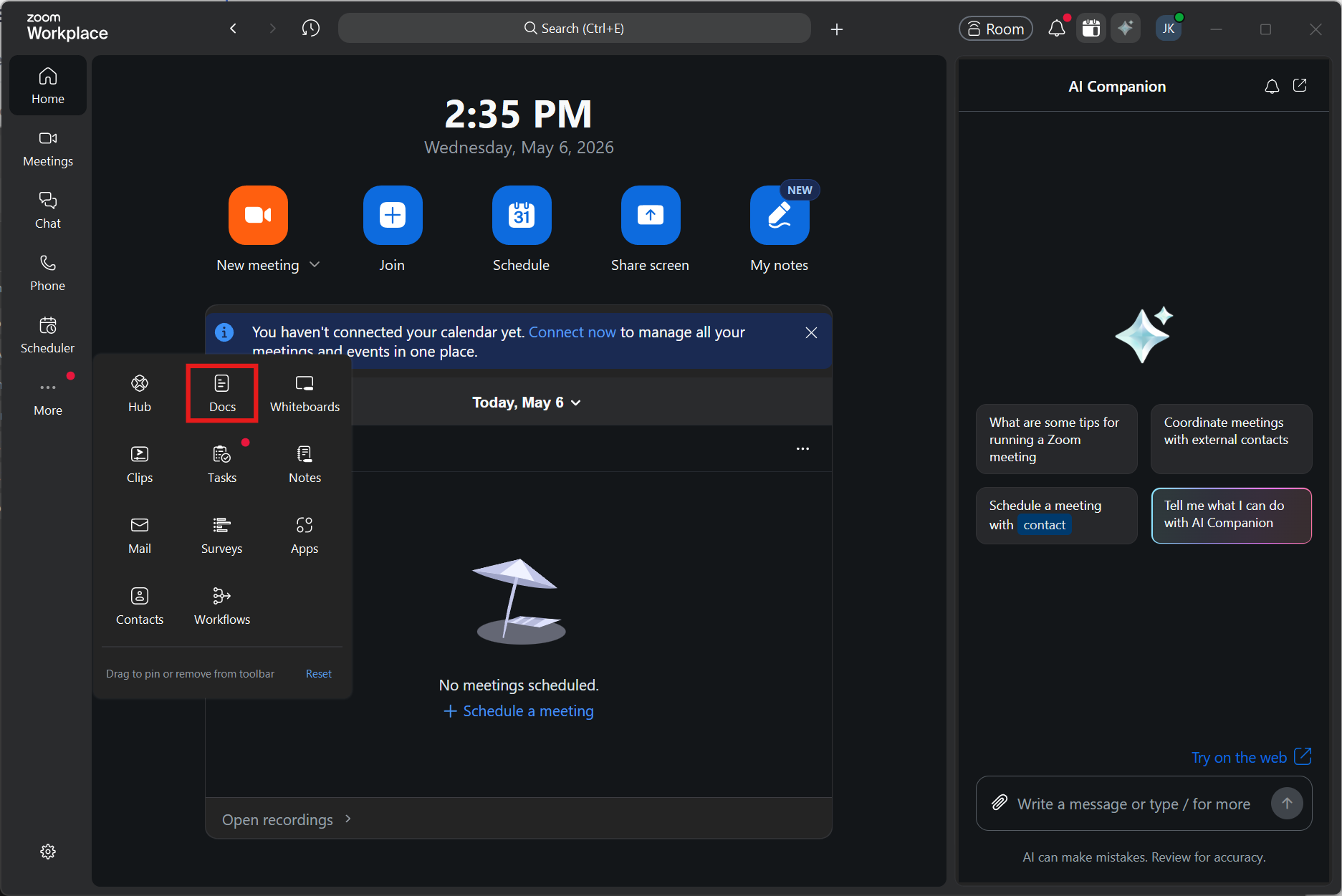
-
Find your meeting
Meeting docs are named with the meeting title and date. Click the doc to open it. -
Review the content
The doc has two tabs: Manual notes for any notes taken during the meeting, and Transcript for the full transcribed conversation. Below the tabs is the AI-generated summary with sections like Key Outcomes.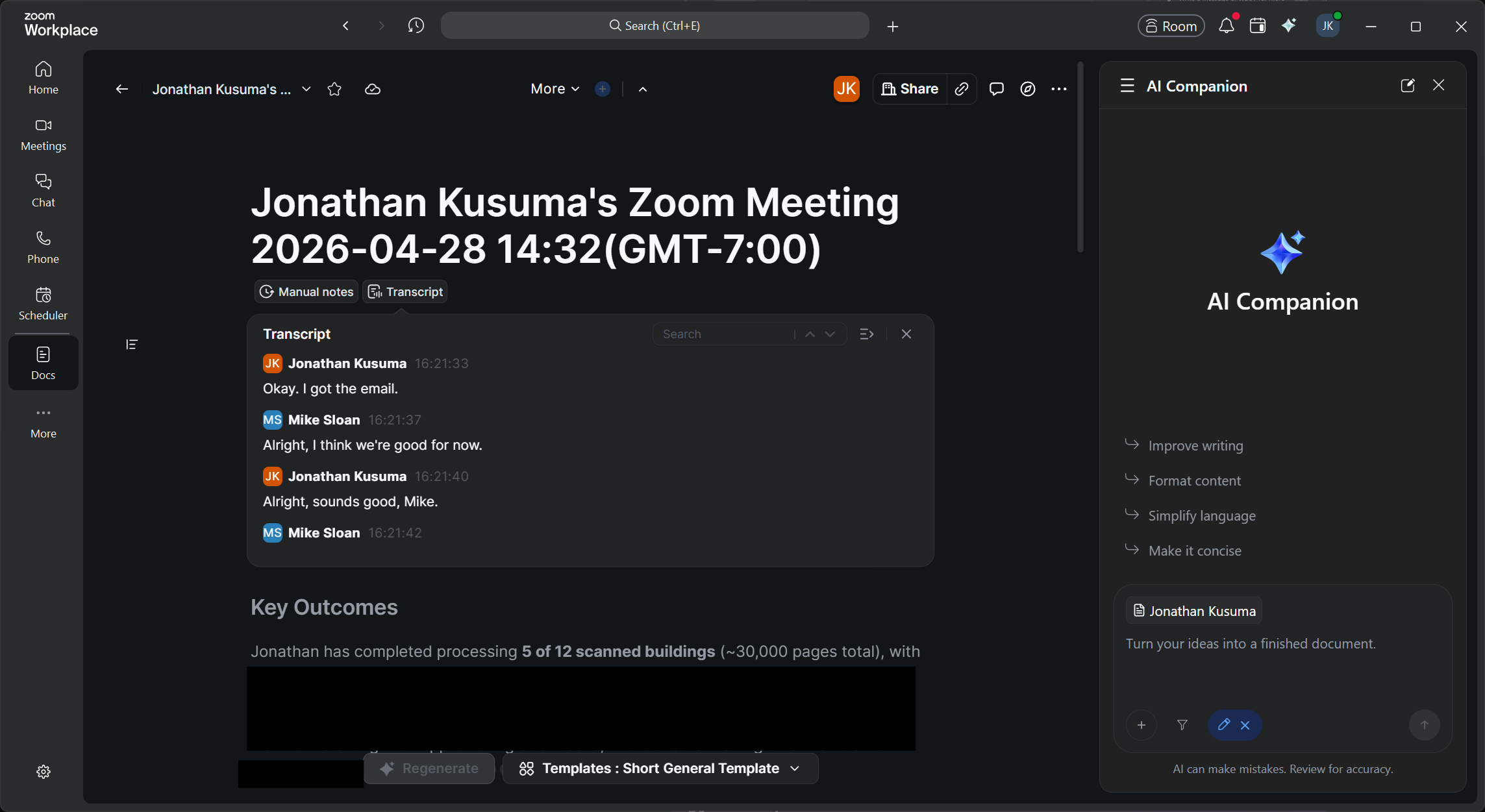
-
Refine with AI Companion
Use the AI Companion panel on the right to improve writing, reformat content, or simplify language. Click Regenerate at the bottom to redo the summary, or change the template from the Templates dropdown.
Generate Content with AI Companion
Inside any Zoom Doc, AI Companion can draft content from a prompt, revise existing text, or build a meeting summary from a past transcript using a template.
Starting a New Doc
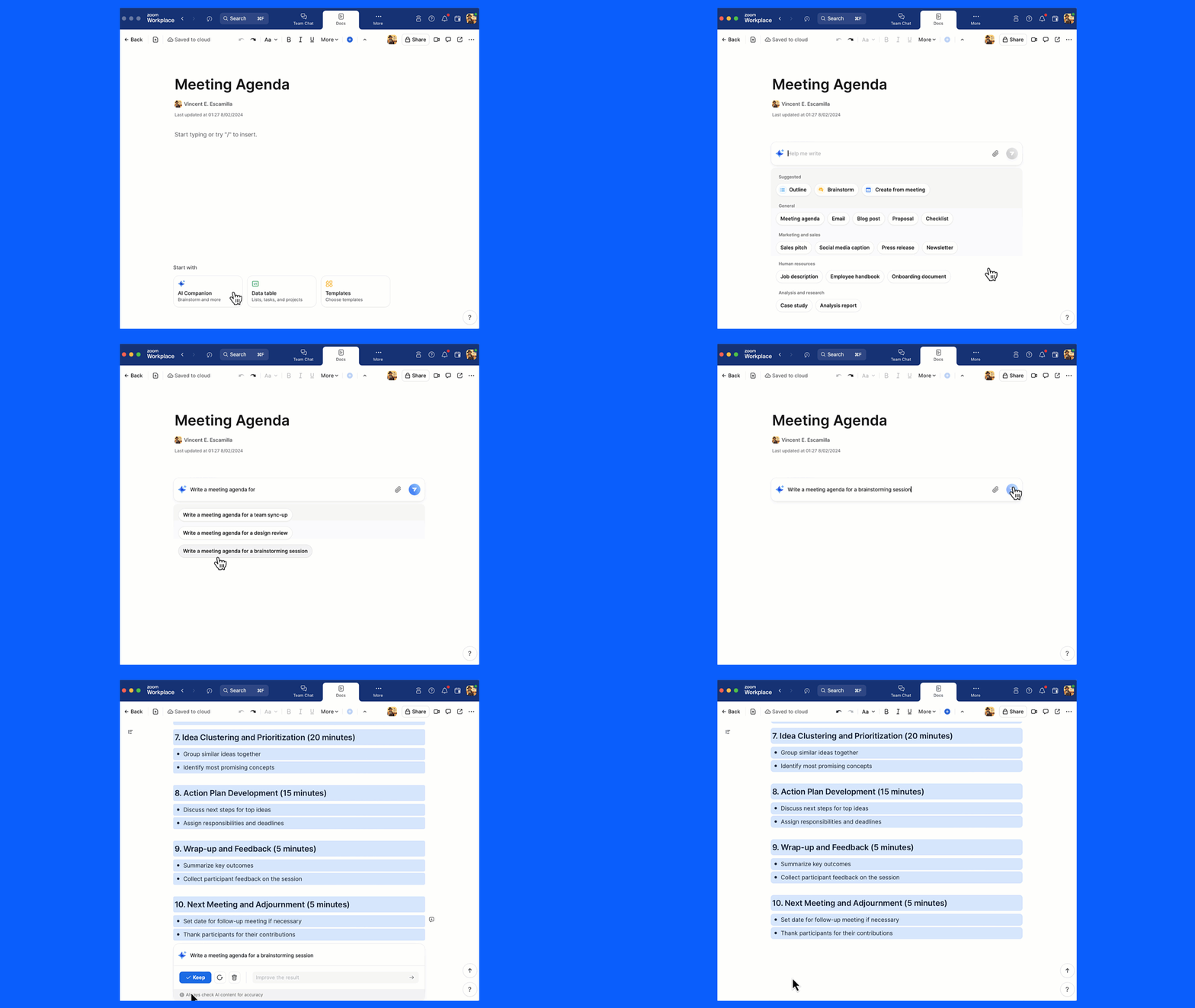
When you create a new doc, three quick-start options appear at the bottom:
| Option | Use case |
|---|---|
| AI Companion | Brainstorm or generate content from a prompt |
| Data table | Lists, tasks, and projects |
| Templates | Pre-built layouts, including meeting summary docs built from existing transcripts |
Click AI Companion and describe what you want. For example, “draft an agenda for a tenant lease renewal meeting” or “outline talking points for a vendor onboarding call”.
Building a Summary from a Past Transcript
If a meeting wasn’t summarized at the time (or you want a different format), use Templates to pick a layout and have AI Companion fill it in from an existing transcript.
Revising Existing Content
Highlight any text in a doc and use the AI Companion panel on the right to rewrite, reformat, simplify, or expand the selection.