

Z: Drive (Drag & Drop)
Place PDF files into the shared inbox folders on the Z: drive. The watcher detects them, runs OCR, entity matching, and LLM refinement automatically. Files appear on the Inbox page ready for review.
The Inbox page monitors shared folders and email accounts for incoming PDFs, automatically processes them through the document pipeline, and presents them for review. Documents can arrive by drag-and-drop to the shared Z: drive folders or automatically from configured Outlook email accounts.
The Inbox combines two systems: a folder watcher that scans the shared Z: drive for new PDFs, and an email fetcher that pulls PDF attachments from Outlook mailboxes via Microsoft Graph API. Both feed into the same processing pipeline.
Z: Drive (Drag & Drop)
Place PDF files into the shared inbox folders on the Z: drive. The watcher detects them, runs OCR, entity matching, and LLM refinement automatically. Files appear on the Inbox page ready for review.
Email Fetch (Graph API)
Configure dedicated email addresses for invoices and documents. The system fetches unread PDF and DOCX attachments, converts DOCX to PDF, and saves them to the Z: drive inbox folders for processing.
| Folder | Path | Purpose |
|---|---|---|
| Invoice Inbox | Z:\Shared\BBT Asset Management Inc\Inbox\Invoices | Incoming invoices from email or drag-and-drop |
| Document Inbox | Z:\Shared\BBT Asset Management Inc\Inbox\Documents | Incoming documents from email or drag-and-drop |
Each folder has a temp subfolder where processing results are cached. This allows multiple PCs to share the same inbox without reprocessing files another machine already handled.
The Inbox Watcher is a background process that continuously monitors the inbox folders. It starts automatically when the dashboard opens with a 30-second delay before the first scan, then scans every 30 seconds.
The watcher toggle appears in the sidebar on every page. When enabled, the watcher:
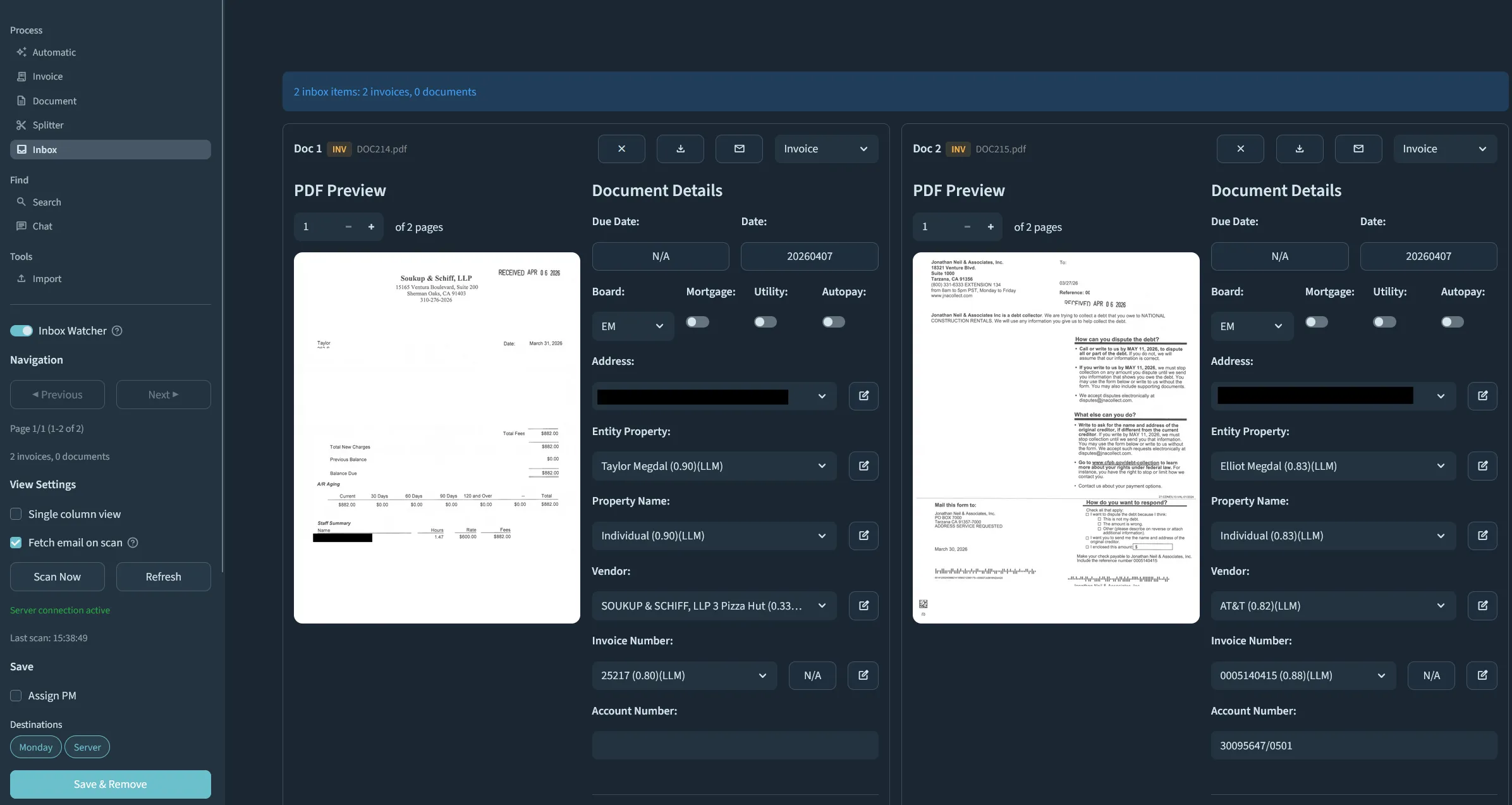
The Inbox page displays all files found in the inbox folders with their extracted data. Each document shows a PDF preview alongside its detected fields, just like the Invoice and Document processing pages.
View Settings
| Control | Description |
|---|---|
| Single column view | Switch between 2-column and single-column layout |
| Fetch email on scan | When checked, clicking Scan Now fetches email attachments before scanning folders |
Actions
| Button | Description |
|---|---|
| Scan Now | Immediately scans inbox folders for new files. If “Fetch email on scan” is checked, fetches from email first. |
| Refresh | Reloads processed results from disk without re-scanning |
Save Options
| Control | Description |
|---|---|
| Assign PM | Automatically assign property managers when uploading to Monday.com |
| Destinations | Choose where to save: Monday.com, Server, or both |
| Save & Remove | Save all items to selected destinations and delete originals from the inbox |
| Save Only | Save without removing originals |
| Remove All | Delete all files from the inbox without saving |
Each document in the Inbox has a toolbar with the following actions:
| Button | Action |
|---|---|
| X (Remove) | Removes the document from the processing stack and deletes the original file from the inbox folder |
| Download | Downloads the document with its generated filename |
| Opens the email dialog to send the document to recipients | |
| Type dropdown | Switch between Invoice and Document processing for this file |
The email fetcher uses Microsoft Graph API to read PDF and DOCX attachments from configured mailboxes. No classic Outlook installation is required.
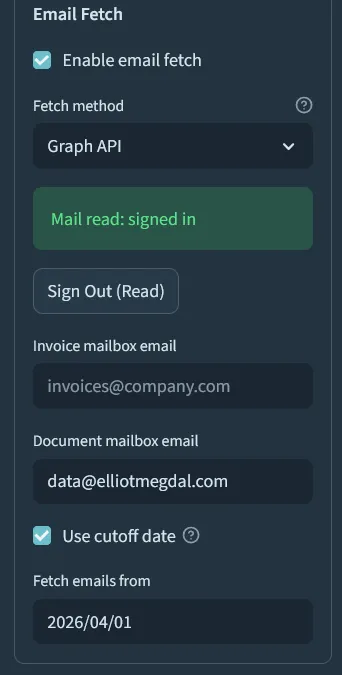
Email fetch settings are in the Email Settings expander on the sidebar.
Enable email fetch Check Enable email fetch to activate the feature.
Select fetch method Choose Graph API from the Fetch method dropdown. Graph API works on any PC without needing classic Outlook installed.
Sign in for mail read Click Sign In for Mail Read. A link and code will appear. Open the link in your browser, enter the code, and sign in with your Microsoft account. Return to the dashboard and click Signed in to confirm.
Enter mailbox email addresses Enter the email address for the invoice mailbox and/or document mailbox. These can be your own mailbox or shared mailboxes you have delegate access to.
Configure cutoff date (optional) Check Use cutoff date and select a date to only fetch emails received on or after that date. When unchecked, only unread emails are fetched.
When email fetch runs (either via the watcher or manually through Scan Now):
The email fetcher tracks which emails have already been downloaded using a local tracking file. Each email’s unique message ID is recorded after its attachments are saved. On subsequent fetch cycles, emails already in the tracking list are skipped.
To re-fetch an email that was already downloaded, delete the tracking file at:
C:\Users\{username}\Documents\document_preprocessor\inbox\processed_graph_ids.jsonThen restart the dashboard. The next fetch cycle will re-download all unread emails matching the current settings.
Authentication tokens for both email sending and mail reading are encrypted at rest using Windows DPAPI (Data Protection API).
Both files are in C:\Users\{username}\Documents\document_preprocessor\. DPAPI encryption ties the tokens to the Windows user account that created them. They cannot be decrypted on another machine or by another user.
The email fetcher uses the following Microsoft Graph API permissions:
| Scope | Purpose |
|---|---|
Mail.Read | Read emails from the signed-in user’s mailbox |
Mail.Read.Shared | Read emails from shared/delegate mailboxes |
Mail.Send | Send emails (used by the invoice email feature, separate sign-in) |
The Inbox is designed for multi-PC environments where multiple team members share the same Z: drive inbox folders.
temp subfolder. If one PC processes a file, other PCs loading the Inbox page will see the cached result instantly without re-processing.