

AP Processing Workflow
Vendors email invoices to the EMA accounting email. The mailbox forwards them automatically into AppFolio Smart Bill Entry, where REA (our third-party accounting firm) reviews and posts them. Approvers work the bills in AppFolio, and payments go out Thursday.
Hard copies and invoices sent as links are the exception. Those run through the Document Preprocessor and land in the REA Invoices folder.
Who Does What
| Role | Person | Responsibility |
|---|---|---|
| Office Manager / Data Manager | Lily / Joe | Scan hard copies and download link invoices, run them through the preprocessor, retain stubs/envelopes |
| Accounting Firm | REA | Review and post non-mortgage invoices in Smart Bill Entry, pull utility statements, confirm autopay |
| Approvers | Anna, Mike, Rachana | Approve bills in AppFolio on Tuesday and Thursday |
| Payment Authorization | Rachana | Send the weekly payment report Thursday morning |
| Payment Processing | Odeirre | Process approved payments |
| Mortgage Invoices | Rachana, Odeirre | Post and process mortgage invoices in AppFolio, not handled by REA |
Intake
-
Vendor emails the invoice
One invoice per PDF attachment, sent to EMA accounting email. -
Auto-forward to Smart Bill Entry
The mailbox forwards it to AppFolio. Nothing is saved to the server on this path. -
REA reviews and posts
The bill shows as Ready to Review in Smart Bill Entry. REA corrects the pre-filled fields and saves it, which sends it to the approval queue.
Exceptions: Hard Copies and Invoice Links
Mail that arrives at the office and invoices sent as a link (QuickBooks, vendor portal) cannot forward on their own. These run through the preprocessor and land on the server. Small share of total volume.
Preprocessor path
-
Hard copies
Lily or Joe scan the mail and run it through the Document Preprocessor. Stubs and envelopes stay at the front desk in case a vendor address or remittance detail is needed later. -
Invoice links
Lily or Joe download the PDF, then either email it to EMA accounting email so it forwards automatically, or run it through the preprocessor directly. -
REA picks it up
Files land in a dated subfolder of the REA Invoices folder. REA uploads them into Smart Bill Entry, then moves each file toPosted\. Anything REA cannot post moves toOTS\for EMA to clarify.
Z:\Shared\BBT Asset Management Inc\Accounting\REA_Invoices\DirectoryREA_Invoices/
- REAEntities.xlsv Entity list
Directory05-20-2026/
DirectoryPosted/
- …
DirectoryOTS/
- …
Directory05-21-2026/
DirectoryPosted/
- …
DirectoryOTS/
- …
REA Posting
-
Review the bill in Smart Bill Entry and correct the pre-filled fields. See Review and Save a Bill.
-
Save the bill
It leaves Smart Bill Entry and enters the AppFolio approval queue. -
Open questions
Tag Anna or Rachana in the bill Notes. Use theOTS\folder only when a preprocessed invoice cannot be posted at all.
Approval
Anna, Mike, and Rachana review and approve pending bills in AppFolio (Accounting > Payables) on Tuesday and Thursday.
Payment
Rachana sends Odeirre the weekly payment report Thursday morning. Odeirre processes the approved payments through AppFolio’s Pay Bills workflow.
Utility Invoices
Utility invoices follow the same posting and approval flow, but REA pulls them from vendor portals instead of waiting for a vendor email.
-
EMA shares the account list
The full list of utility vendor portal accounts goes to REA. -
Credentials go through Keeper
Portal logins are shared with REA in Keeper. See Keeper Password Manager. -
REA pulls invoices on the 1st and 15th
REA logs into each portal twice a month and routes the statements through Smart Bill Entry. -
REA confirms autopay
REA maintains the utility account log and enrolls any account not already on autopay.
Working in Smart Bill Entry
Review and Save a Bill
-
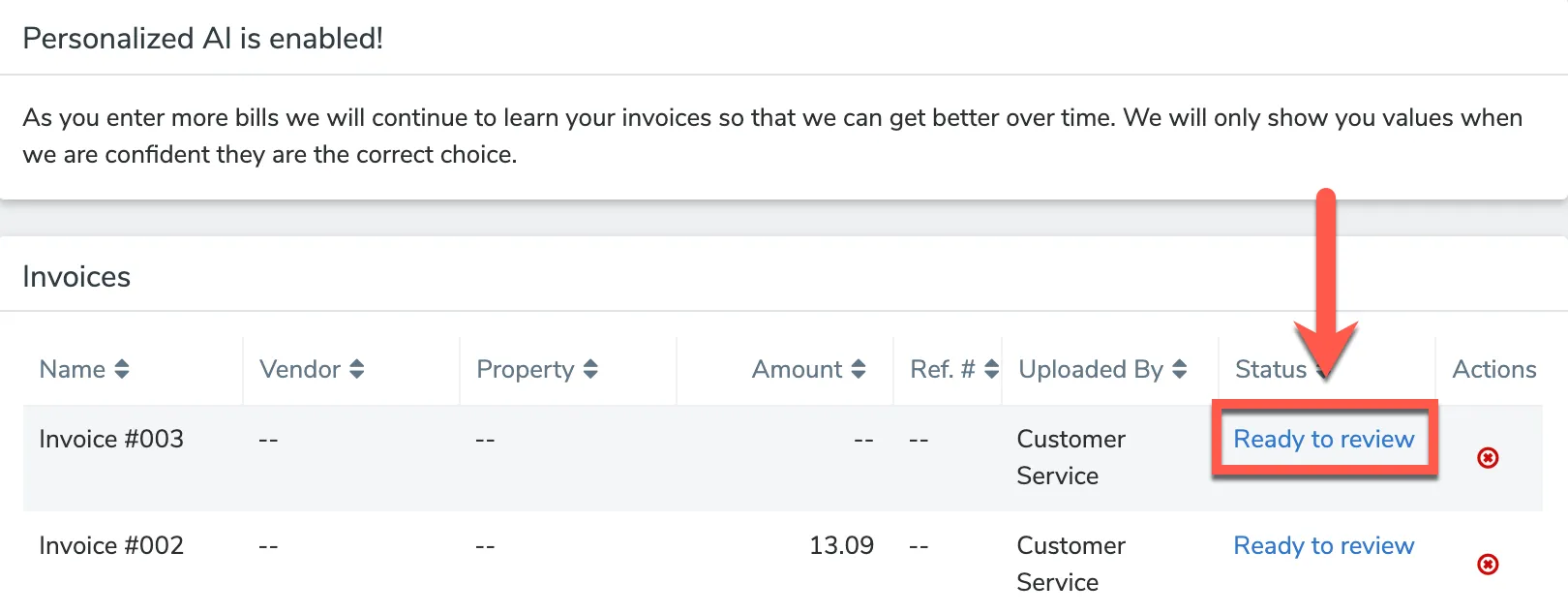
Click Ready to Review next to the invoice.
-
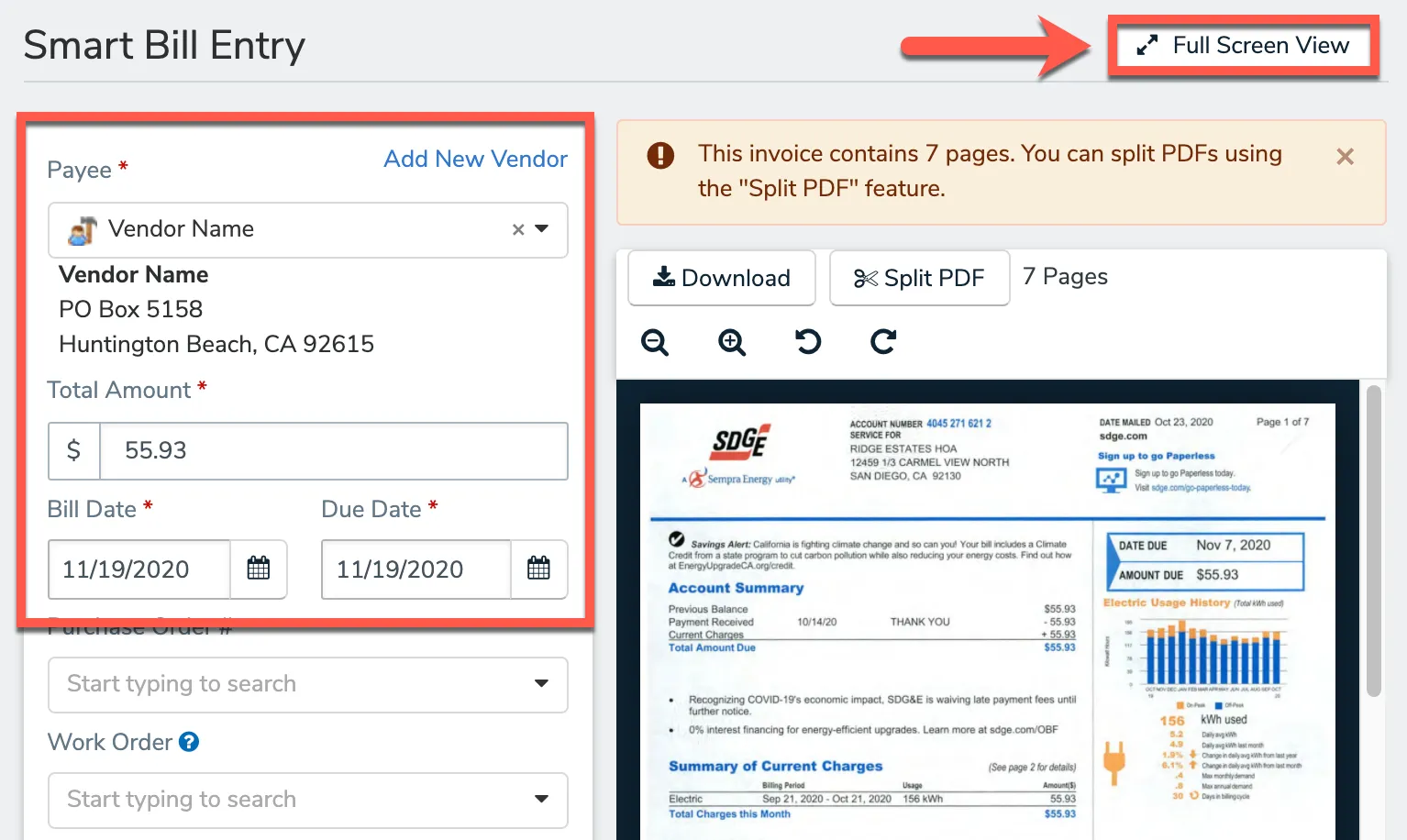
Click Full Screen View to enlarge the PDF preview.
-
Check each pre-filled field against the PDF: Payee, Total Amount, Bill Date, Due Date, Reference Number, Property, GL Account, Work Order. Utility bills carry an account number and service dates instead of a reference number.
-
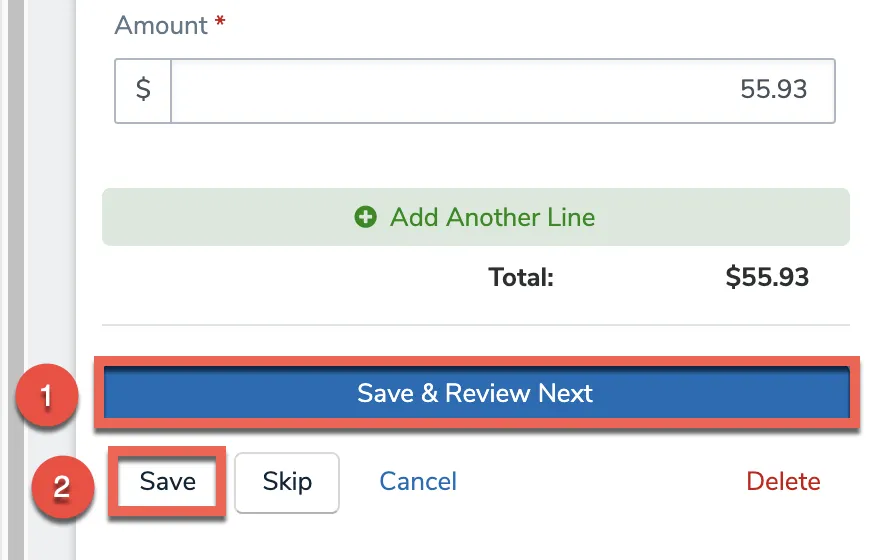
Click Save & Review Next to move to the next invoice, or Save to return to the bill index.
Split a PDF With Multiple Invoices
-
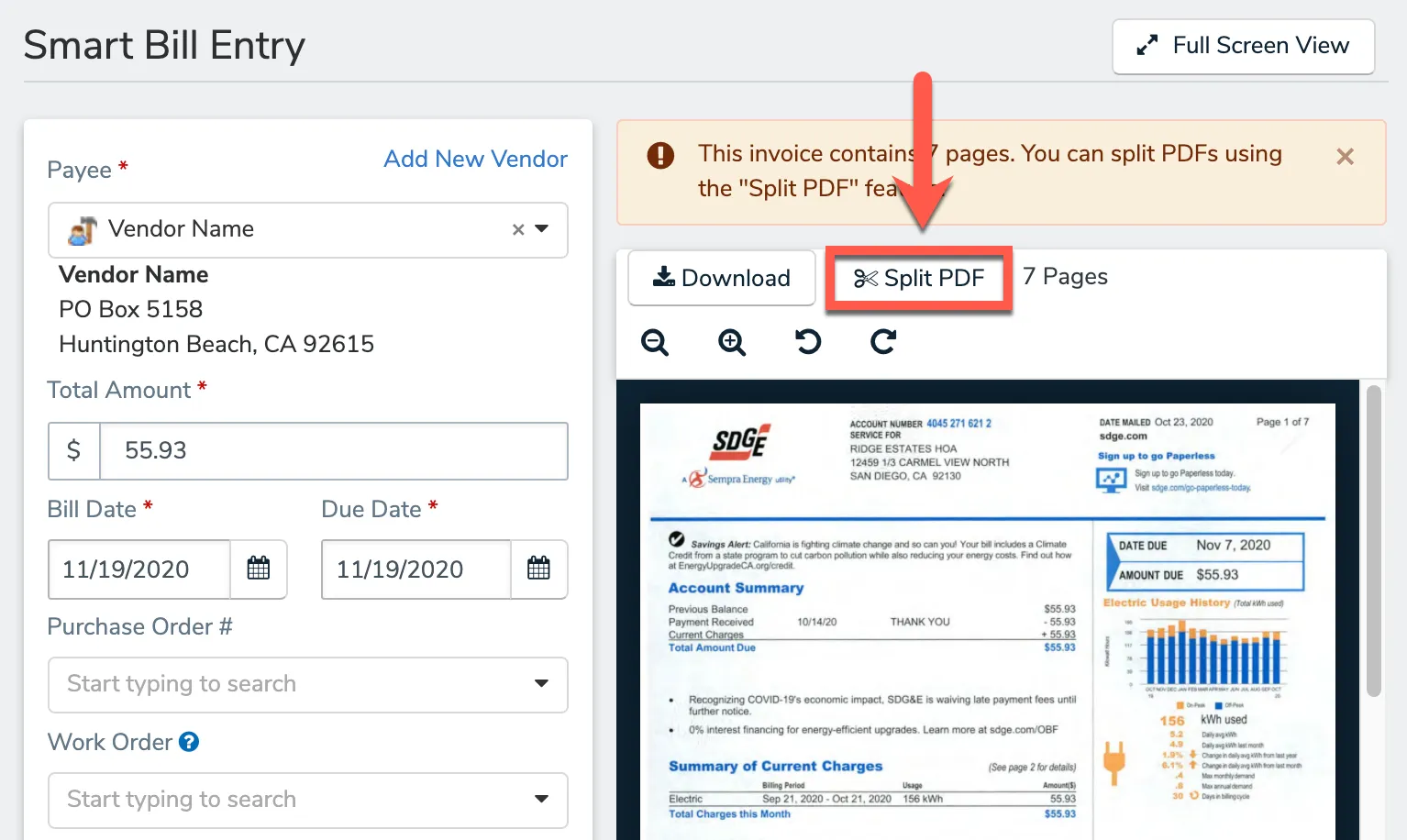
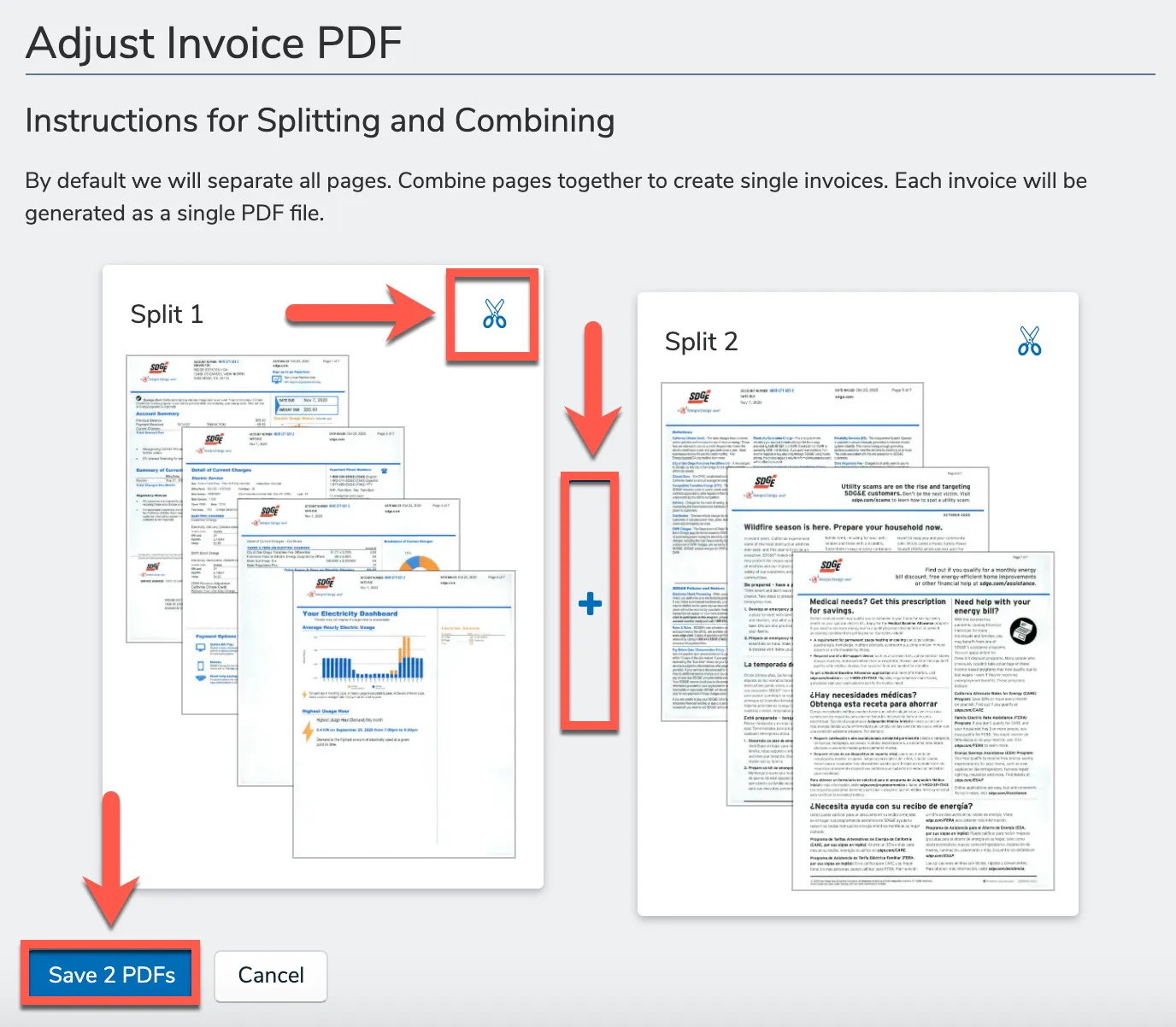
Click Split PDF above the PDF preview.
-
Each page starts as its own invoice. Use the plus icon to join pages that belong together, the scissor icon to separate them again. The Save button shows how many files you will end up with.
Upload Invoices Manually
Use this for preprocessed files (hard copies and invoice links).
-
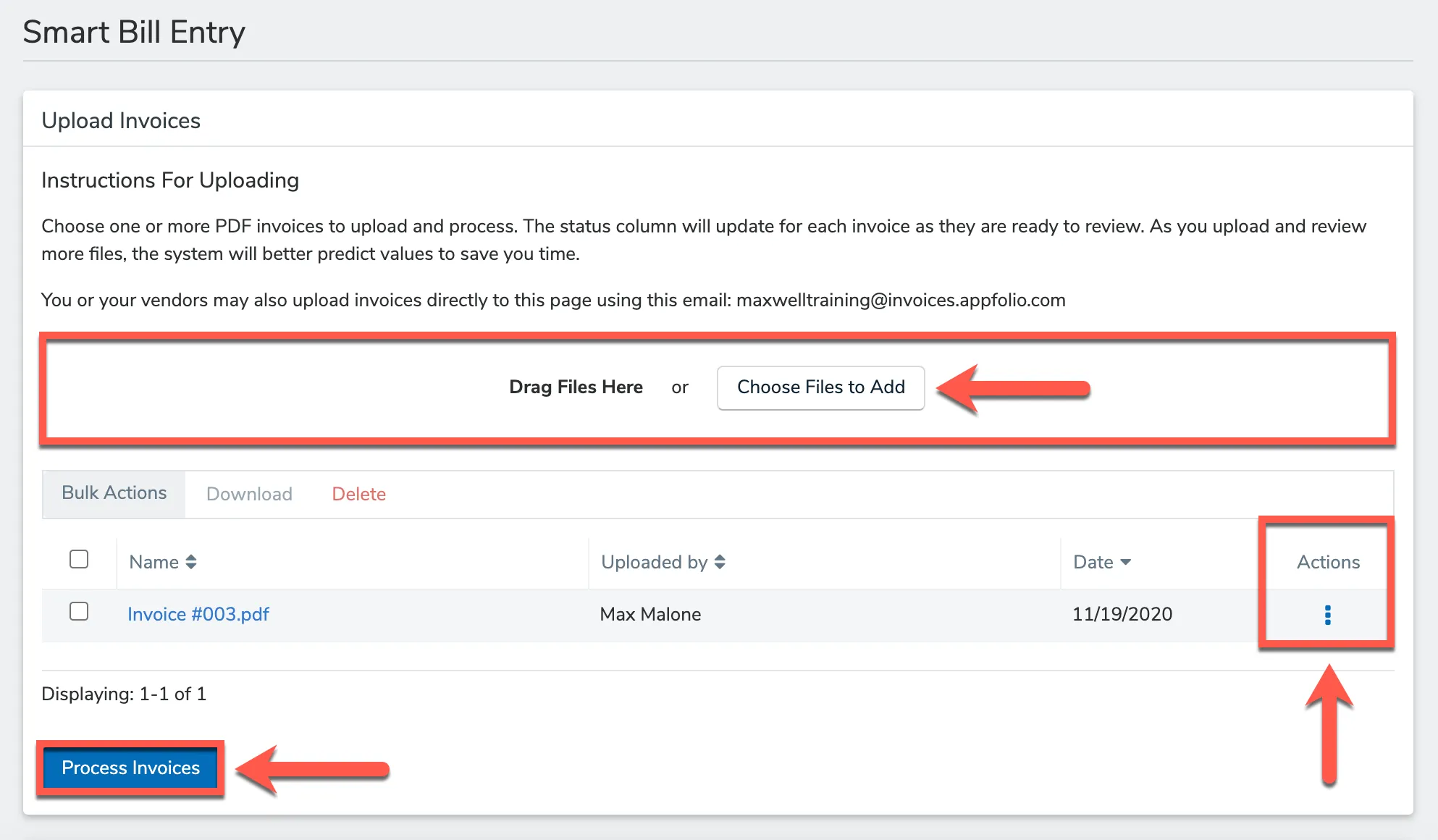
Go to Accounting > Payables > Smart Bill Entry.
-
Drag the PDFs into the Attachments field, or click Choose Files to Add.
-
Click Process Invoices. Each invoice takes about 30 seconds.
Find Our Invoices Email Address
The accounting mailbox forwards to this address. Vendors do not use it.
-
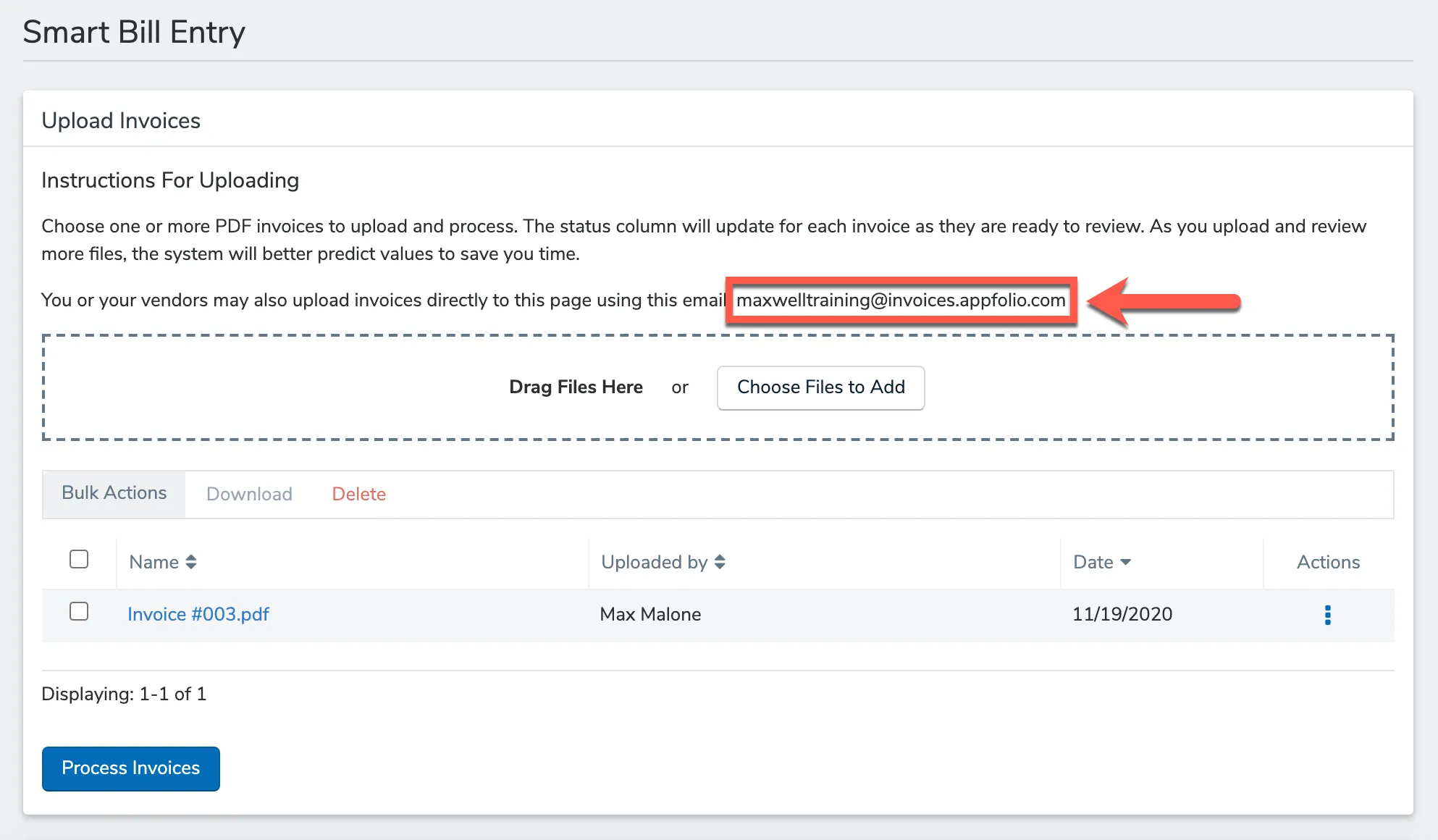
Go to Accounting > Payables > Smart Bill Entry.
-
The address is in the Upload Invoices block, in the format
[database-name]@invoices.appfolio.com.
Turn On New Invoice Alerts
-
Click your name in the upper right, then My Settings.
-
Under Email Notifications, go to Payments and Accounting.
-
Check New Smart Bill Entry emailed invoices are received.
-
Scroll down and click Save.
Troubleshooting
Common Smart Bill Entry issues
Vendor gets “No valid attached PDF files were found”
The PDF is encrypted, corrupted, an image renamed to .pdf, or the email was forwarded without the attachment. Ask the vendor to resend a clean PDF.
A bill is not visible in Smart Bill Entry
The user needs Smart Bill Entry access, and access to the property once one is assigned. Bills with no property yet are visible to everyone with Smart Bill permissions.
Duplicate warning on save
AppFolio flags a matching vendor and reference number from a prior bill. Confirm it is not a resend before saving.
Junk email in the queue
The address cannot be changed and senders cannot be blocked. Delete statements, notices, and marketing directly from the queue.
What to Tell Vendors
-
Send invoices to EMA accounting email.
Vendors do not get the AppFolio address. Everything routes through our mailbox. -
One invoice per PDF attachment.
Smart Bill Entry only reads the first page of a file, so stacked invoices get missed. -
Put the work order number on the invoice.
AppFolio links the bill to that work order and marks it Completed on approval.