Setup Prompt
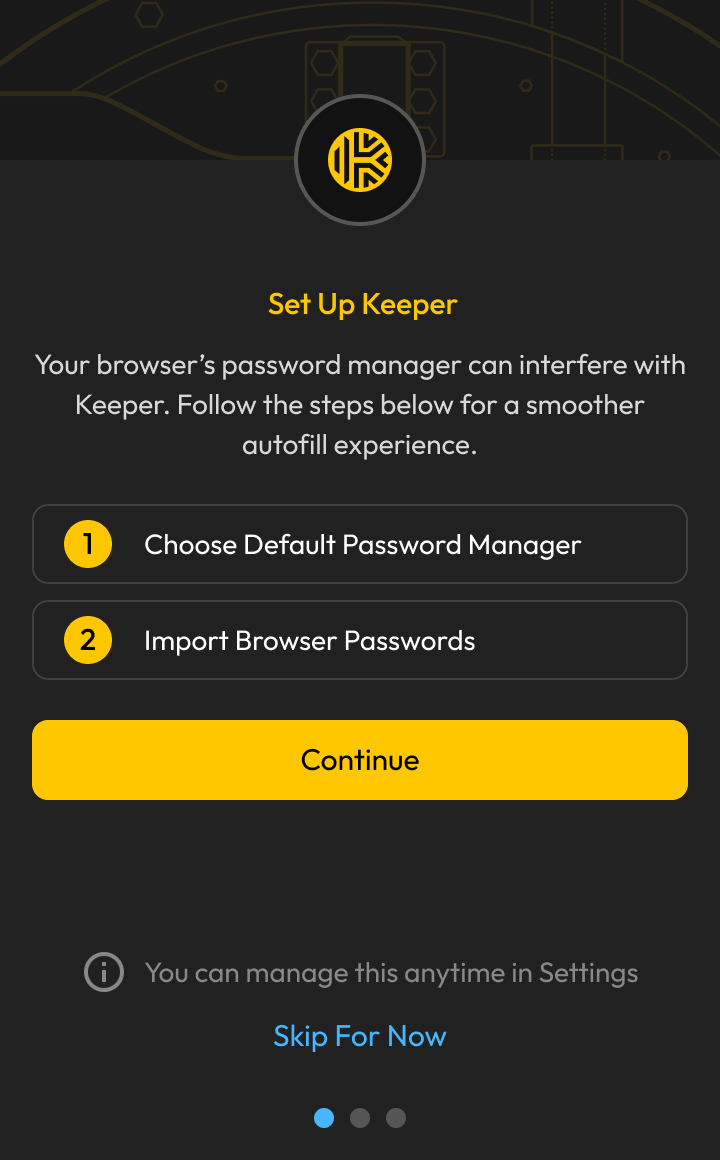
The setup wizard walks you through two steps: choosing your default password manager and importing existing browser passwords.
Keeper is our company password manager. Every employee must use Keeper to store credentials, generate strong passwords, share access with team members, and manage two-factor codes. This guide focuses on the KeeperFill browser extension.
KeeperFill autofills your logins and saves new credentials to your vault. Install it on every browser you use. Keeper works across all of them simultaneously.

Install from the Chrome Web Store
Search for Keeper Password Manager and click Add to Chrome.
Pin the extension
Click the puzzle icon in your toolbar, then click the pin icon next to Keeper Password Manager.
Disable Chrome’s built-in password manager
Go to Settings > Passwords and turn off Offer to save passwords.
Log in
Click the Keeper icon and sign in with your email and master password or SSO credentials.
Install from the Edge Add-ons store
Search for Keeper Password Manager & Digital Vault and click Get.
Show in toolbar
Click the extensions puzzle icon, then click the eye icon next to Keeper to Show in Toolbar.
Disable Edge’s built-in autofill
Go to Settings > Microsoft Wallet > Passwords > Settings and turn off the built-in password saving.
Log in
Click the Keeper icon and sign in with your credentials.
Install from Firefox Add-ons
Search for Keeper Password Manager & Digital Vault and click Add to Firefox.
Enable in private windows (optional)
Right-click the Keeper icon and select Manage Extension. Toggle on Run in Private Windows.
Disable Firefox’s built-in password manager
Go to Settings > Privacy & Security and uncheck Ask to save logins and passwords for websites.
Log in
Click the Keeper icon and sign in with your credentials.
Install from the Mac App Store
Search for Keeper for Safari and install it.
Enable the extension
Open Safari > Settings > Extensions and check the box next to Keeper.
Disable Safari’s built-in autofill
Go to Safari > Settings > AutoFill and disable User names and passwords.
Log in
Click the Keeper icon in your Safari toolbar and sign in.
On your first login, Keeper prompts you to choose your default password manager and import passwords from your browser. Click Continue to complete setup or Skip For Now.
Setup Prompt
The setup wizard walks you through two steps: choosing your default password manager and importing existing browser passwords.
Disable Built-In Manager
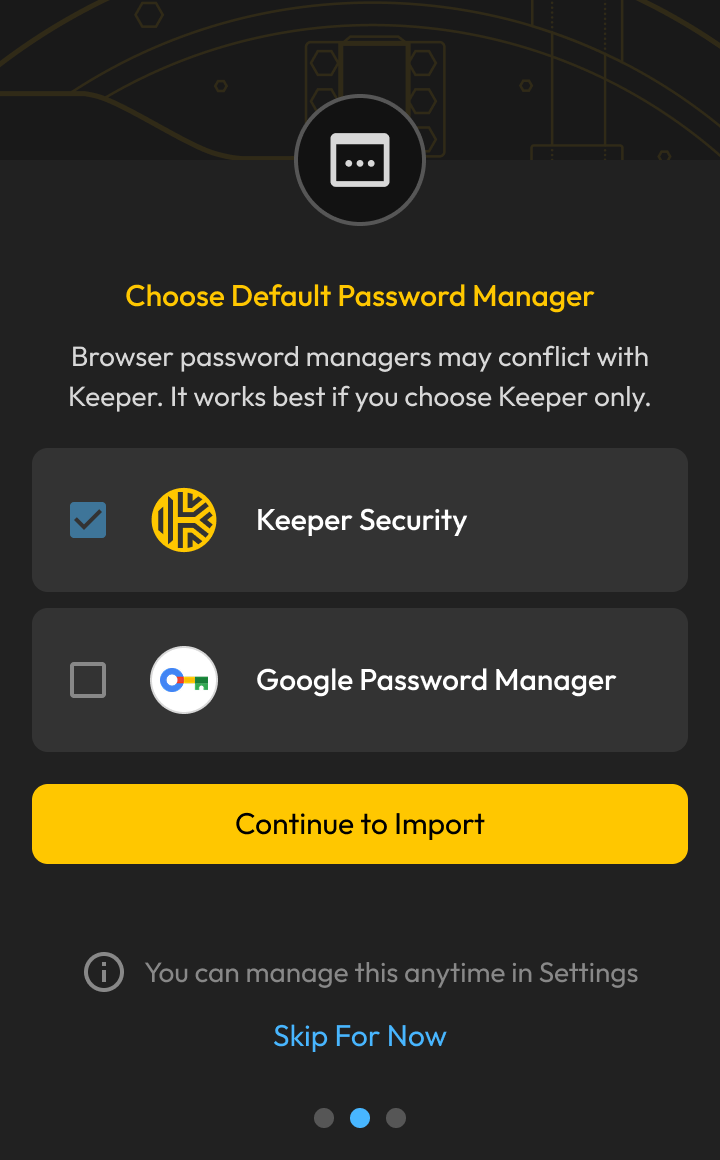
Select Keeper Security and leave the browser’s built-in manager unchecked, then click Continue to Import.
Click Import Passwords to open your vault and import any passwords saved in your browser.
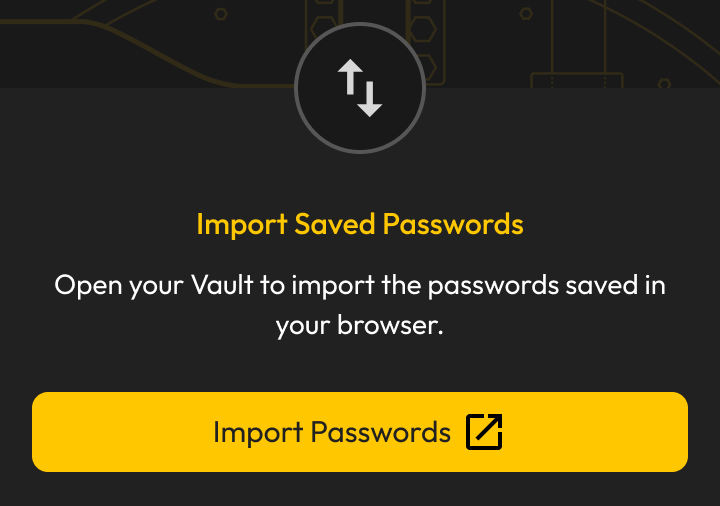
You can also import later from the Web Vault by going to Settings > Import. Keeper supports importing from Chrome, Firefox, Safari, Edge, LastPass, 1Password, Bitwarden, and many other sources.
Navigate to the site’s sign-up or login page
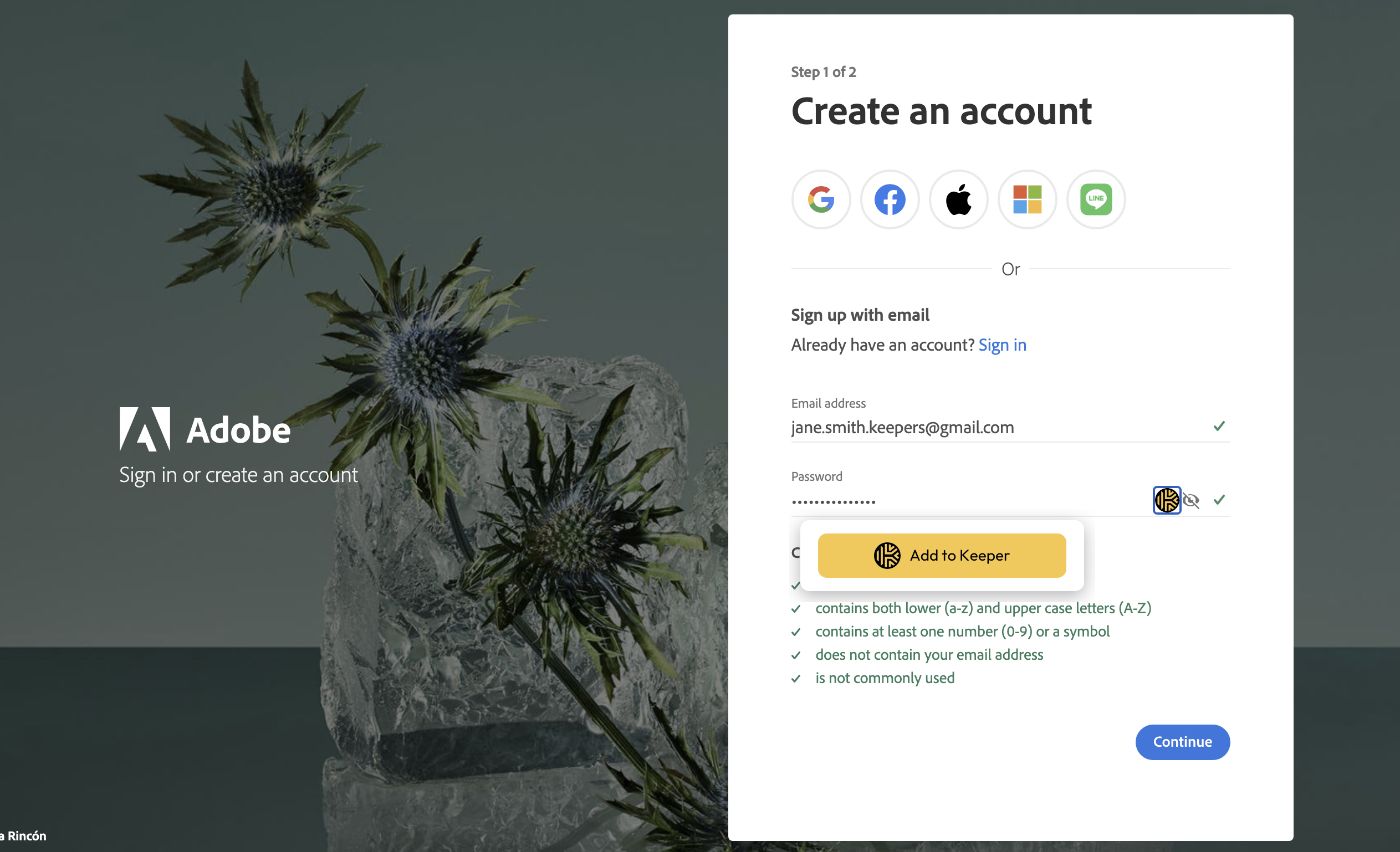
Keeper detects the form fields automatically.
Click the Keeper icon in the form field
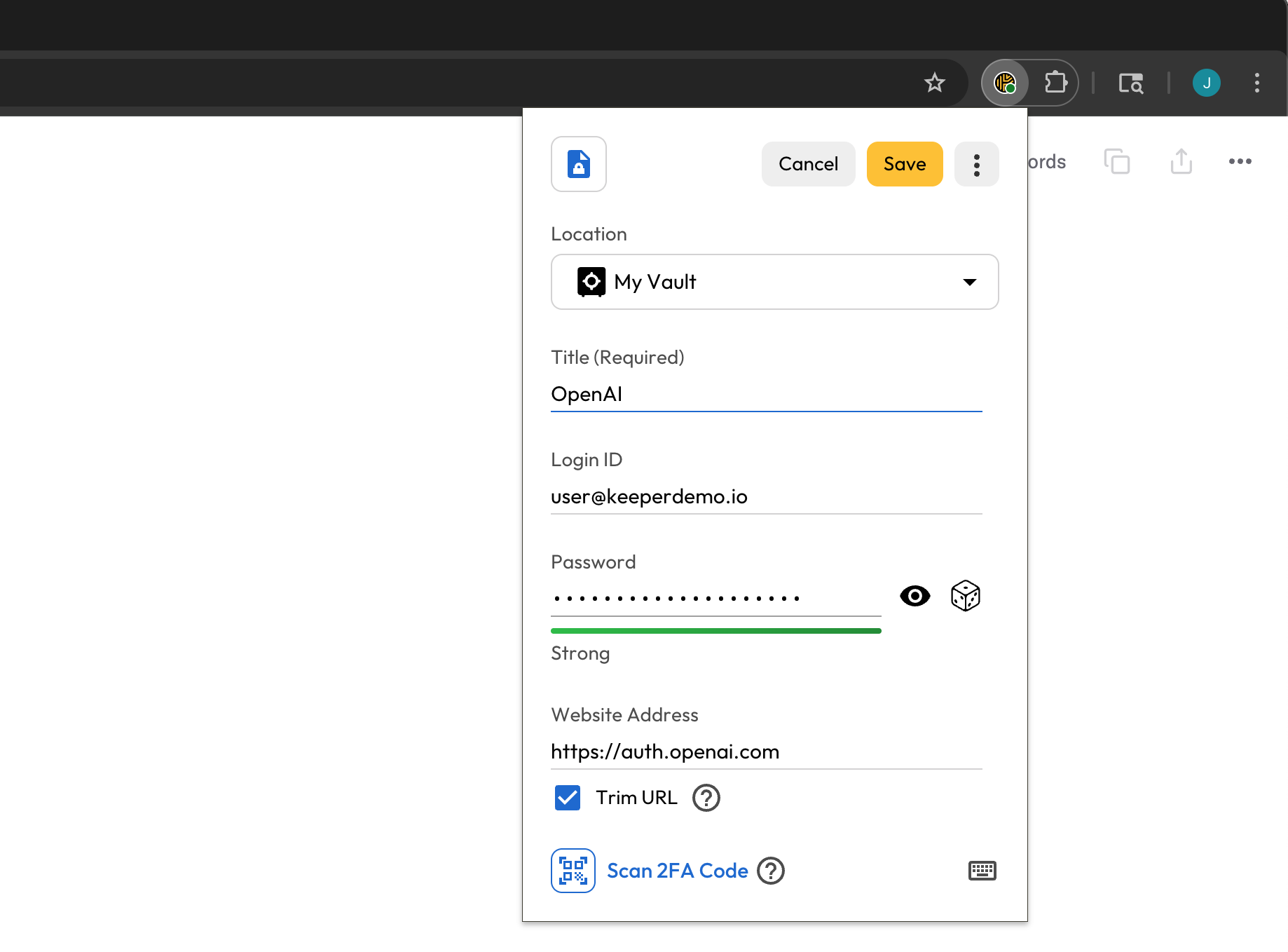
Select Create a Record or Add to Keeper. Keeper auto-generates the record title and URL based on the website you are visiting.
Generate a password
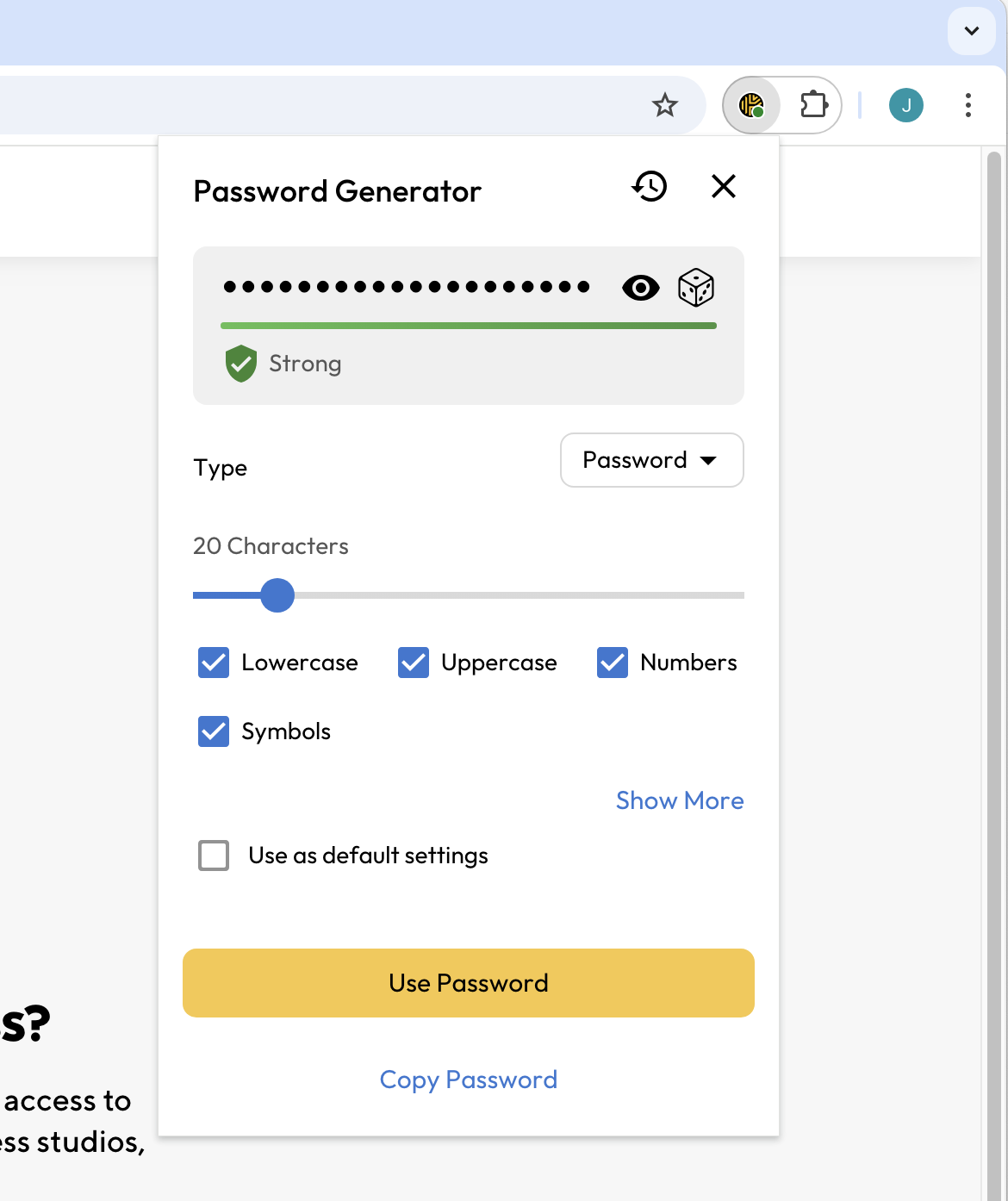
Click the dice icon next to the password field. You can customize the password by character length (8-99 characters) and choose to include lowercase and uppercase letters, numbers and symbols. Click Use Password to apply.
Save the record
Click the checkmark to save. The record is stored in your vault and will autofill next time you visit the site.
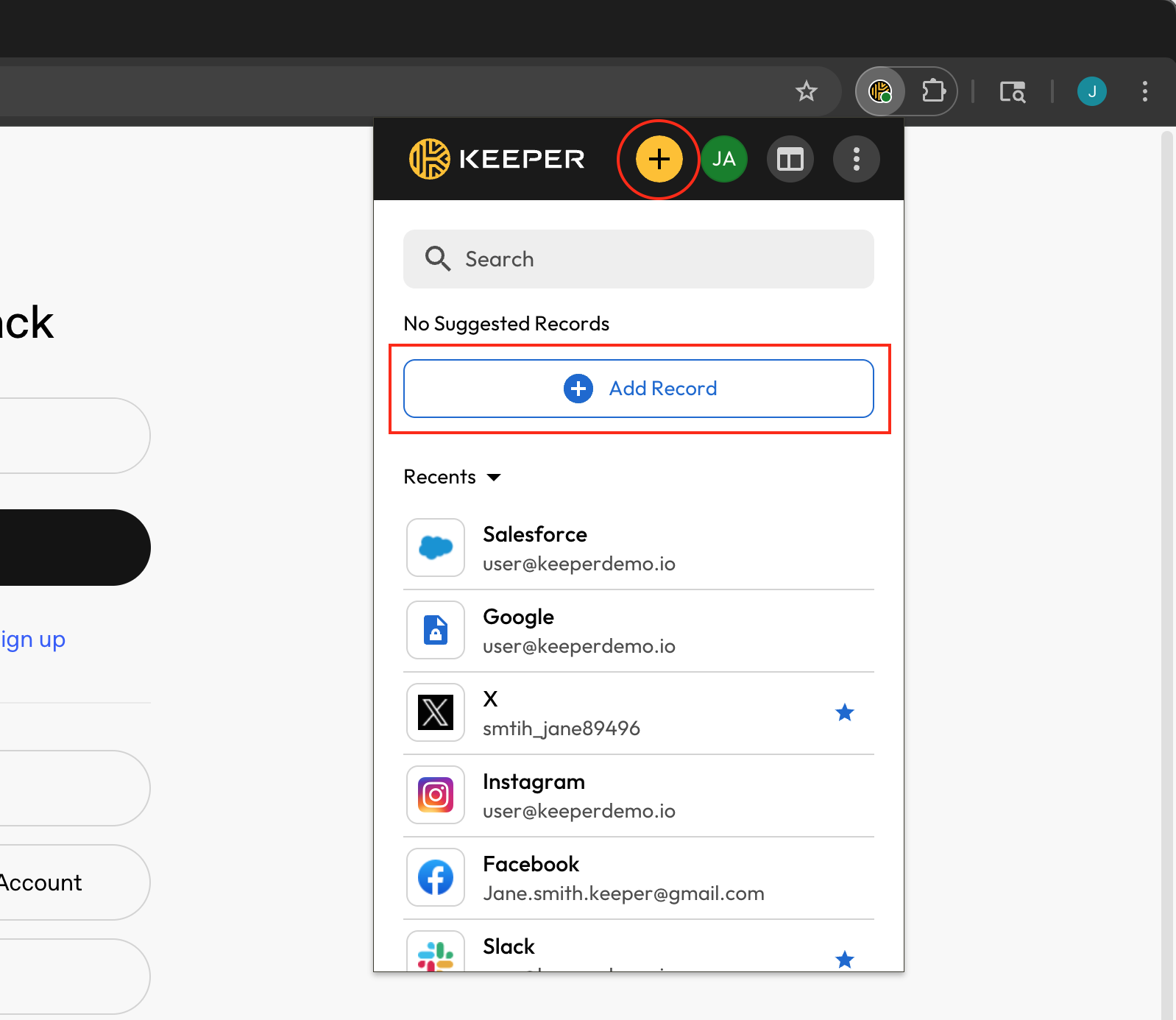
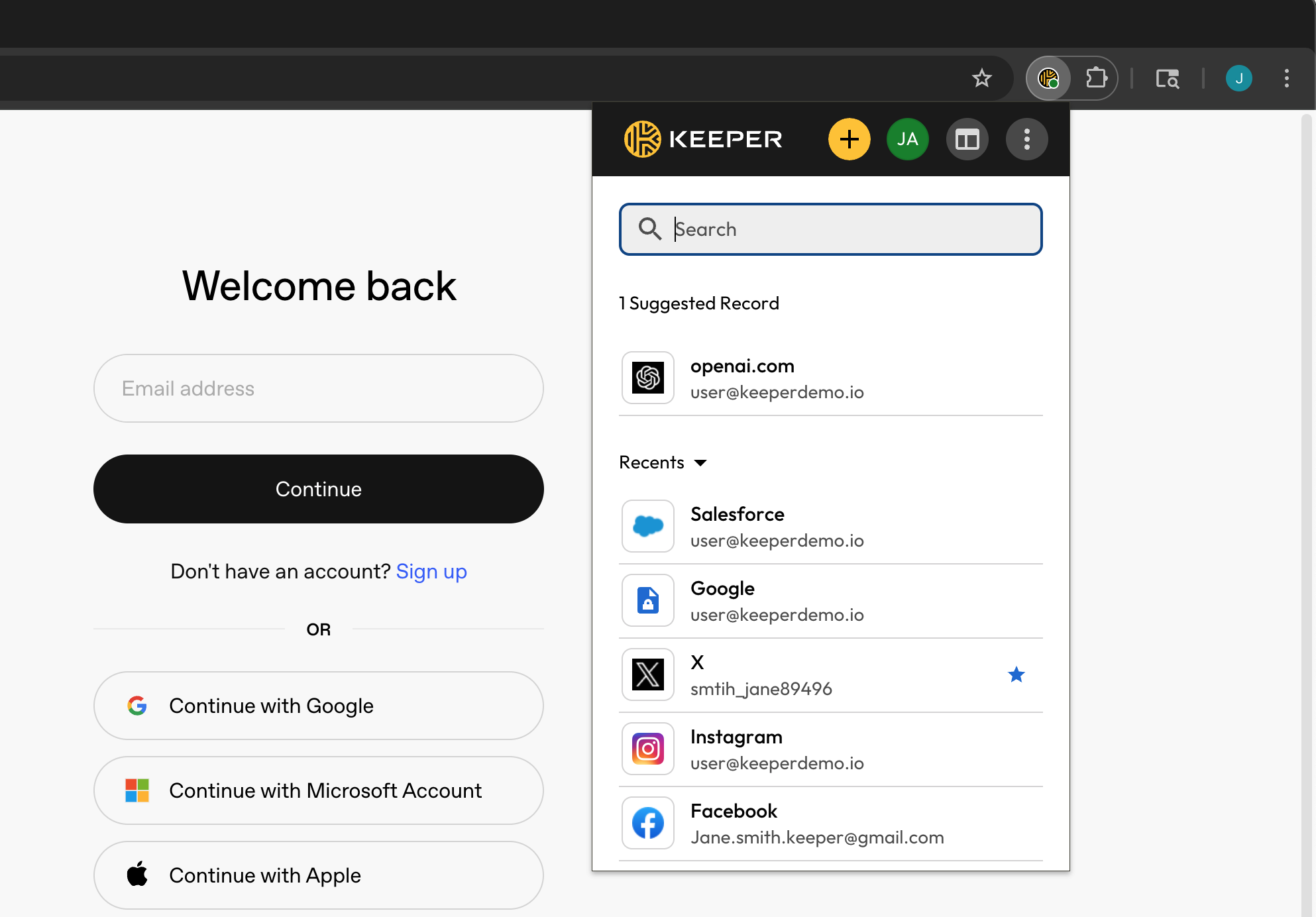
Click the yellow plus (+) button in the KeeperFill toolbar to create a record at any time. If you have no suggested records for the website you are on, Keeper displays an Add Record button instead.
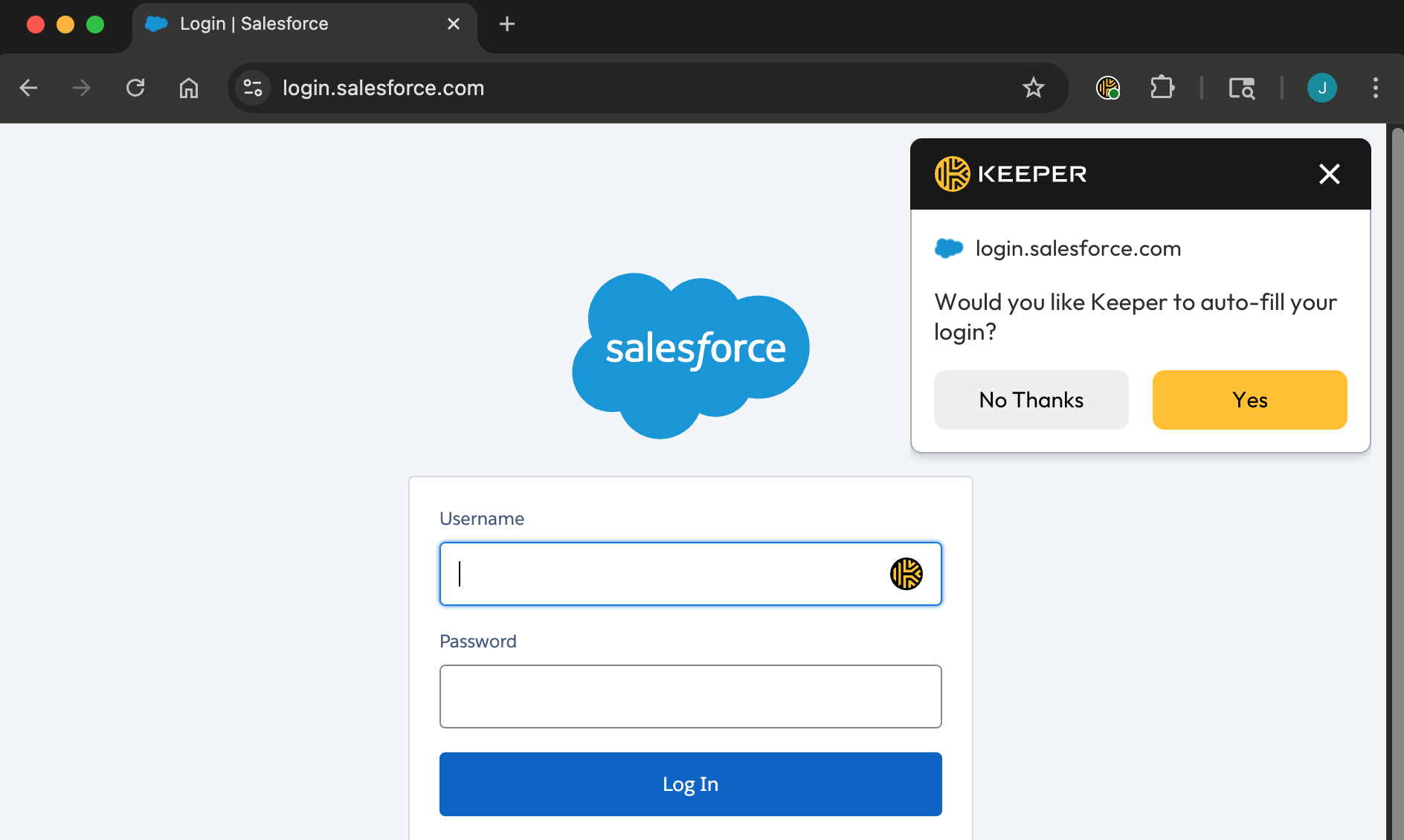
When you visit a site with a saved record, Keeper matches it and offers to autofill your login. Click Yes on the prompt, or open the extension and select the suggested record.
| Practice | Why It Matters |
|---|---|
| Use a unique password for every site | A breach on one site won’t compromise your other accounts. |
| Let Keeper generate your passwords | Random 20+ character passwords are virtually uncrackable. You don’t need to remember them. |
| Never share passwords via email or chat | Use Keeper’s sharing features instead. Credentials sent in plaintext can be intercepted. |
Keeper uses RSA encryption to share passwords and files. You can share directly with another Keeper user or with a team.
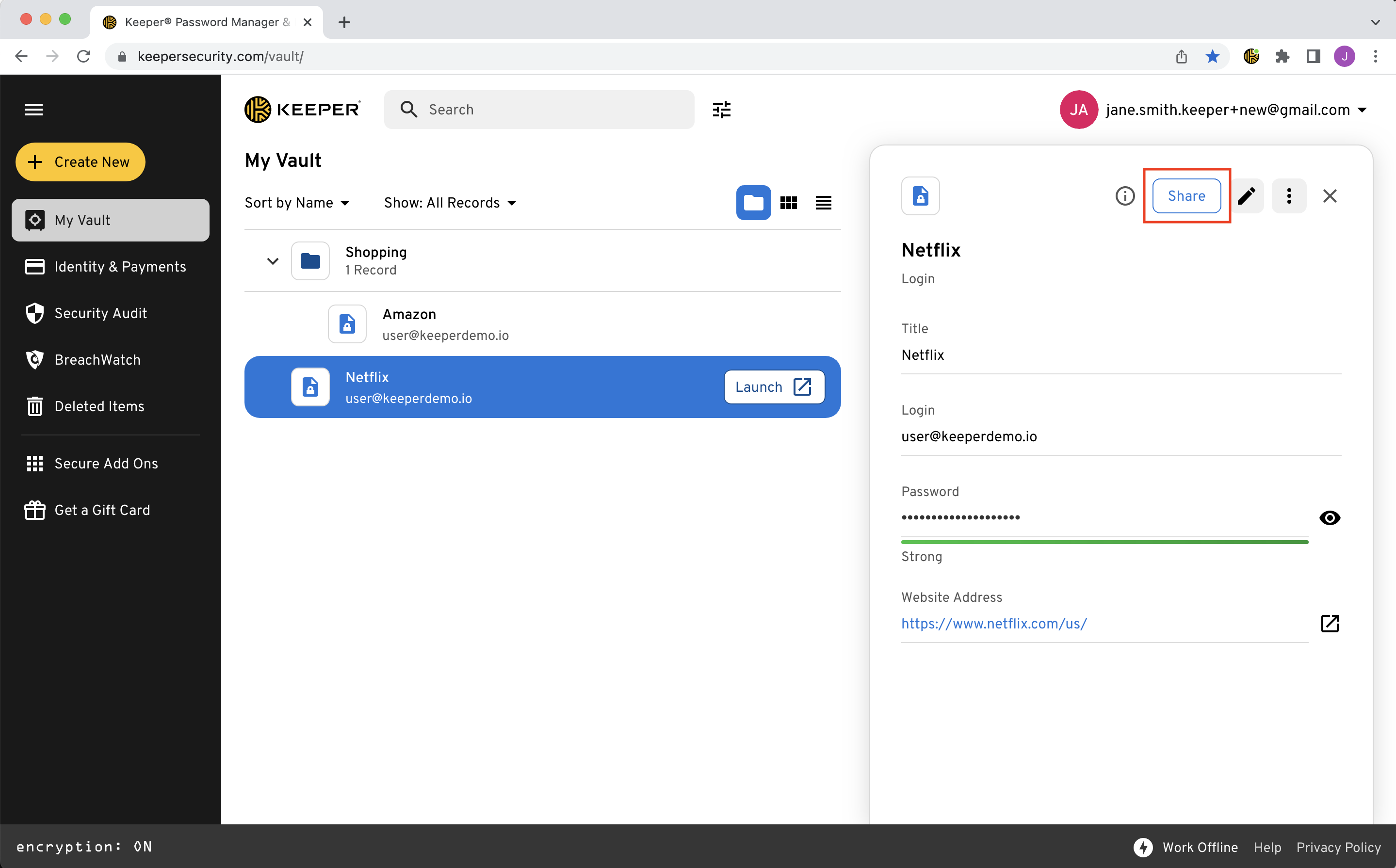
Open the record in your vault and click the Share button.
Enter the recipient’s email
From the Add People tab, enter the email address of the Keeper user you would like to share the record with.
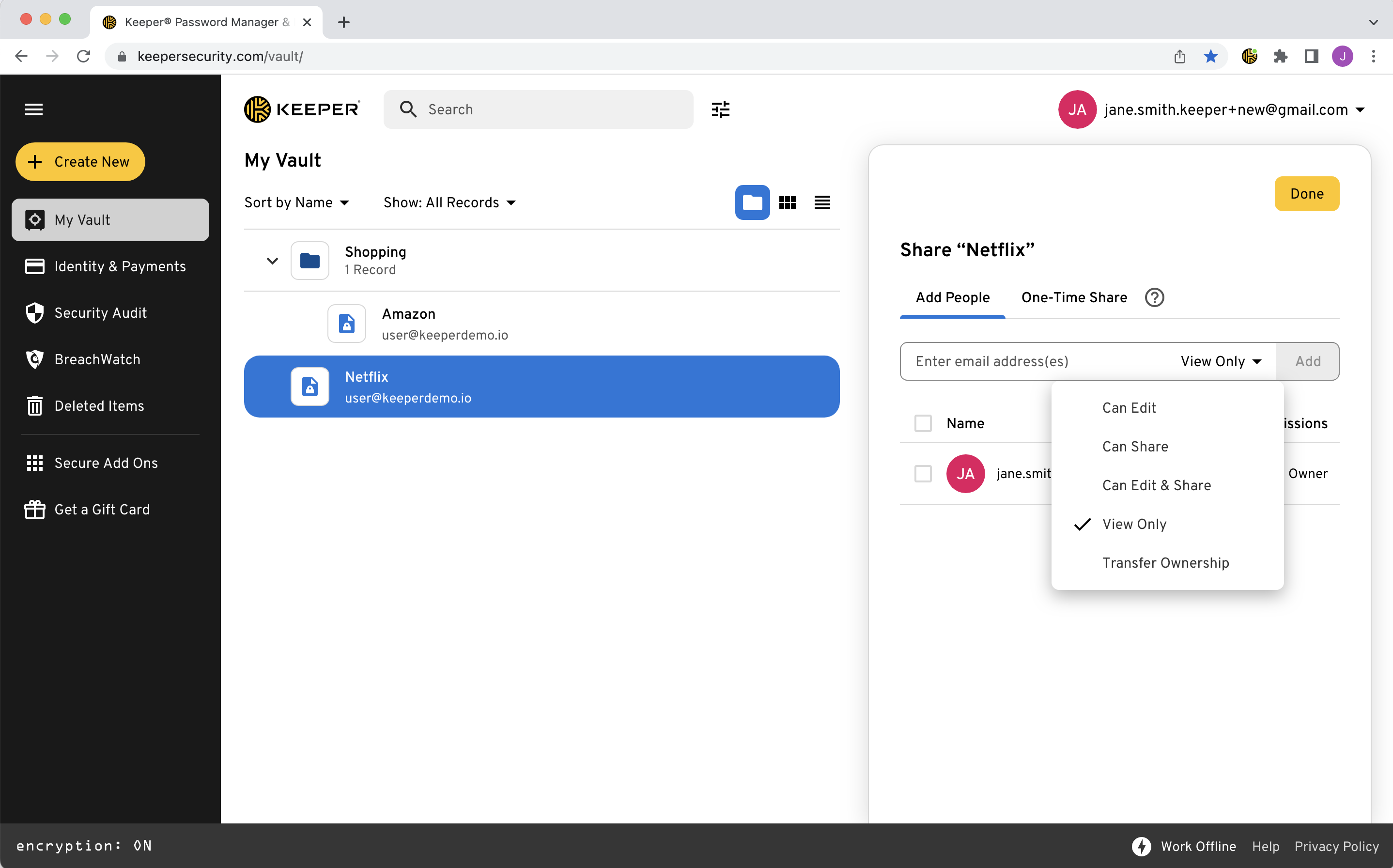
Set permissions
Click the dropdown arrow to set their permission level: Can Edit, Can Share, Can Edit & Share, View Only, or Transfer Ownership.
Click Add
Business users within the same tenant do not need to approve a sharing relationship.
Shared folders allow you to share multiple records at once with a set of users or teams.
Create a shared folder
Click Create New > Shared Folder. Choose where to nest the folder and enter a name.
Set default permissions
Set the User Permissions (Can Manage Users, Can Manage Records, etc.) and Record Permissions (Can Edit, View Only, etc.).
Add records
Drag and drop records into the folder, or click Edit and use the record search bar.
Add users or teams
From the Users tab, enter email addresses or team names. Set individual permission levels as needed.
Keeper can store and autofill two-factor codes for any site that supports TOTP (Time-Based One-Time Passwords). This replaces the need for a separate authenticator app like Google Authenticator or Microsoft Authenticator. Everyone on the team can access 2FA codes through shared records.
Enable 2FA on the target website
Go to the site’s security settings and select the option to set up an authenticator app. The site will display a QR code or a manual secret key.
Open the record in Keeper
From the Web Vault or Desktop App, click the edit icon on the record for that site.
Click Add Two-Factor Code
On the Desktop App, click Scan and drag the scan window over the QR code. Keeper captures it automatically. If no QR code is available, select manual entry and paste the secret key (typically a 32-character string).
Save the record
A rotating 6-digit code now appears in the record. Click Save.
When you log into a site using KeeperFill: