FAQ
This page covers common issues and questions about BBT systems and tools.
Egnyte Server
Setting up Egnyte on Office Applications
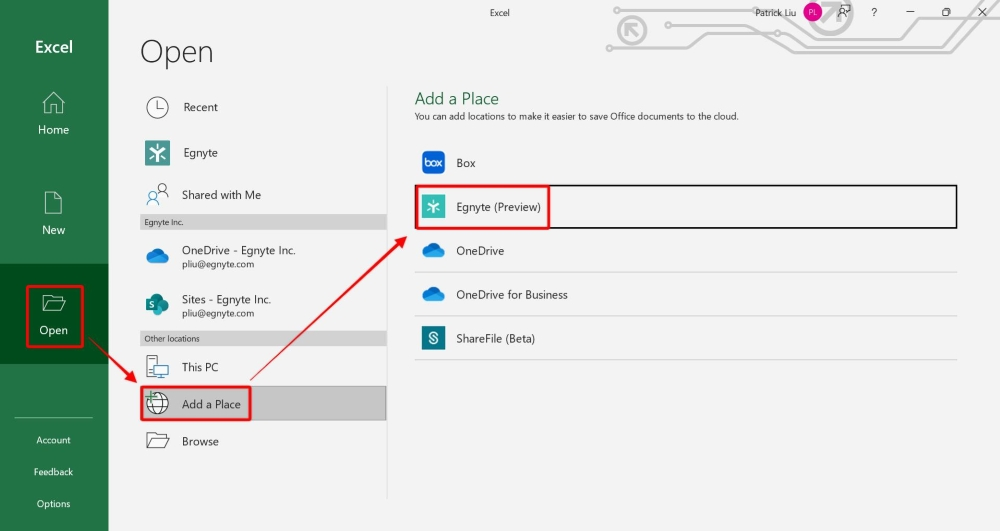
To ensure the co-editing functions properly on your Microsoft Office desktop applications, you will need to enable the feature by following the steps below:
To open enable Egnyte on Office Applications:
-
Click on Open in any Microsoft Office application.
-
Select Add a Place under other locations.
-
Choose Egnyte.
-
Authenticate to allow access to your Egnyte domain.
Can’t see Egnyte on taskbar/file explorer
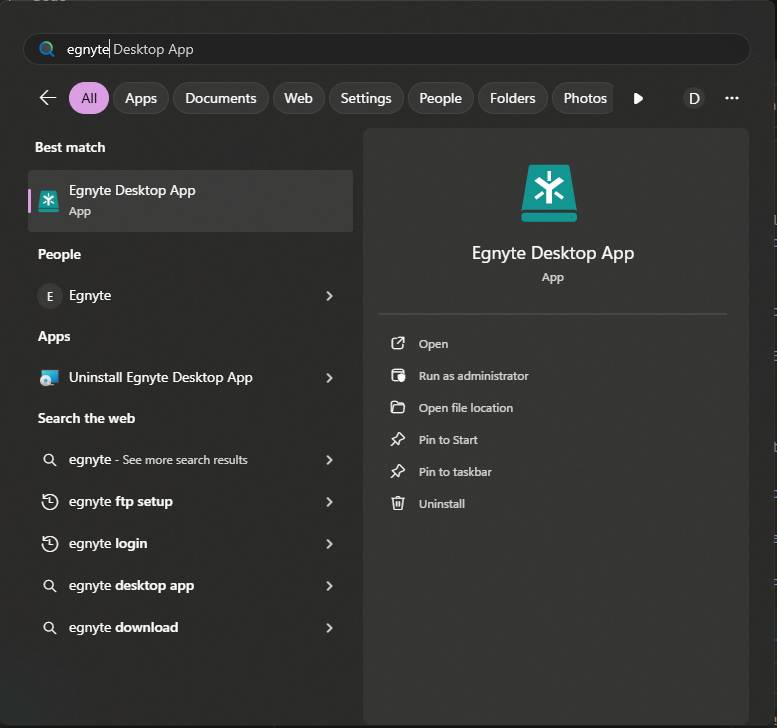
If the Egnyte icon is missing from your taskbar or you can’t access it in File Explorer, the Egnyte Desktop App needs to be opened.
To open Egnyte Desktop App:
-
Press the Windows key or click the Start button
-
Type Egnyte Desktop App in the search bar
-
Click on the Egnyte Desktop App from the search results
-
The Egnyte icon will appear in your taskbar and the drive will be accessible in File Explorer
Monday.com
Finding Your Monday.com API Token
Your API token is required for the Invoice Preprocessor to upload invoices directly to Monday.com.
-
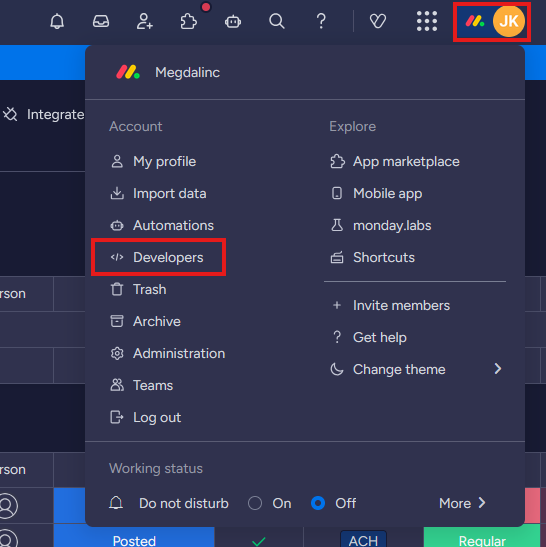
Click your account icon in the top right corner of Monday.com
-
Click Developers from the dropdown menu
-
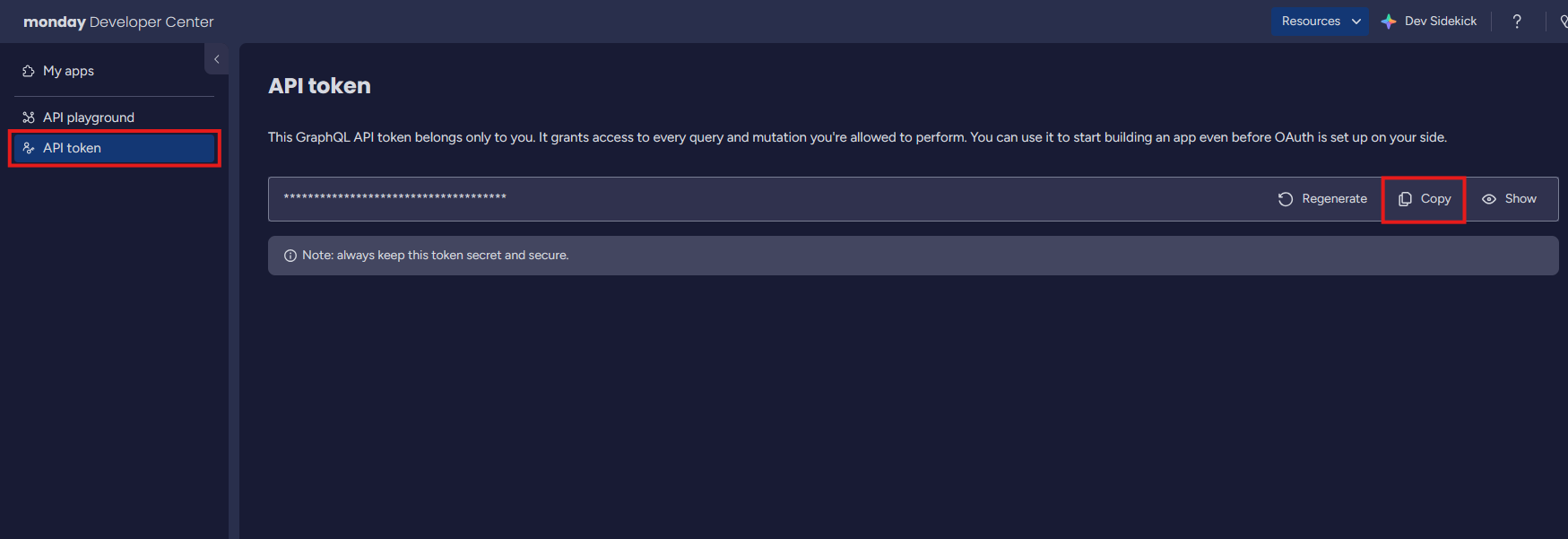
In the Developer Center, click API token in the left sidebar
-
Click Copy to copy your API token to clipboard
-
Paste the token into the Invoice Preprocessor’s Monday.com Settings