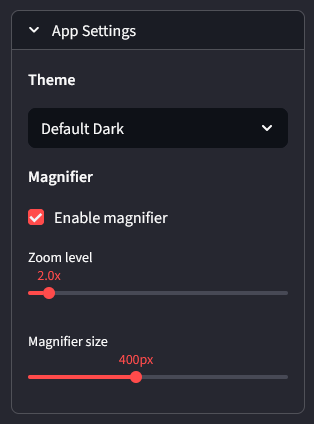
Customize the application display and tools from the App Settings panel, located at the bottom of the sidebar. All settings persist between sessions.
Theme
Setting
Type
Default
Description
Theme
Dropdown
Default Dark
Changes the color theme of the application. After selecting a new theme, refresh the page to apply it.
Performance
Setting
Type
Default
Description
Max workers
Number input (1 — 32)
8
Maximum number of parallel processes used during batch processing. Higher values process faster but use more CPU and memory.
OCR DPI
Number input (72 — 600)
300
Resolution used when rendering pages for OCR. Higher values improve text recognition accuracy but slow down processing.
Magnifier
Setting
Type
Default
Description
Enable magnifier
Checkbox
On
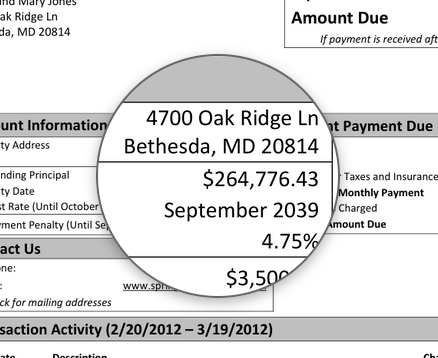
Toggles the magnifier lens on the PDF preview. When enabled, hovering over the PDF shows a zoomed-in overlay.
Zoom level
Slider (1.5x — 10.0x)
2.0x
Controls how much the magnifier lens zooms into the document. Higher values show more detail in a smaller area. Only visible when magnifier is enabled.
Magnifier size
Slider (120px — 800px)
400px
Diameter of the magnifier lens in pixels. Larger values give a wider viewing area. Only visible when magnifier is enabled.
Magnifier shape
Dropdown
Circle
Shape of the magnifier lens. Options are Circle, Rectangle, and Rectangle (Clamped). Clamped keeps the rectangle within the PDF preview bounds. Only visible when magnifier is enabled.
The magnifier renders a high-resolution version of the PDF page behind the scenes so the zoomed view stays sharp. Hover over any part of the PDF preview to inspect fine details like small text, dollar amounts, or signatures.
Splitter
Setting
Type
Default
Description
Default processor
Dropdown (Invoice, Document, Auto)
Invoice
Sets which processing pipeline the splitter uses by default when sending split documents for processing.
Auto-rotate pages
Checkbox
On
Detects and corrects rotated pages when loading PDFs in the splitter.
Auto-exclude blank pages
Checkbox
On
Automatically excludes blank or near-empty pages when loading PDFs in the splitter.
Blank page sensitivity
Slider (0.01% — 2.00%)
0.30%
Controls how aggressively pages are detected as blank. Higher values flag more pages as blank. Only visible when auto-exclude blank pages is enabled.
View Mode
Setting
Type
Default
Description
Scroll view
Checkbox
Off
Displays all documents in a scrollable list instead of one at a time. When disabled, the default 2-column layout is used.
2 columns layout
Checkbox
Off
Arranges document cards side by side in scroll view. Only visible when scroll view is enabled.
Enable OCR embed
Checkbox
Off
Embeds an invisible OCR text layer into scanned PDFs so they become searchable. Increases processing time.
Data Source
Dropdown
Current Server
Selects which vector database is used for search and chat. Options are Current Server, Old + Current, and Old Server Only. Selecting Old + Current or Old Server Only shows additional controls to download and build the old server index.
LLM Integration
Setting
Type
Default
Description
Enable LLM for
Multi-select pills (Invoice, Document, Splitter)
All enabled
Toggles LLM-assisted processing per module. When enabled, the system uses Gemini to refine matching results. Disable individual modules to fall back to rule-based matching only.
Google API Key
Password input
Empty
Your Google AI Studio API key for Gemini access. Required for LLM features to work.
Invoice Custom Instructions
Text area
Empty
Custom instructions passed to the LLM when matching invoice fields. Use this to guide the model for specific edge cases, e.g. “Prefer matching by street number over entity name.”
Document Custom Instructions
Text area
Empty
Custom instructions passed to the LLM when classifying documents. Use this to guide the model for specific edge cases, e.g. “If document has both amendment and consent language, prefer Amendment.”
Splitter Custom Instructions
Text area
Empty
Custom instructions passed to the LLM when detecting document boundaries in the splitter. Use this to guide split behavior, e.g. “Exhibits should always be split as separate documents.”