Search
Find documents by keyword with type and date filters. Results show thumbnails, parsed filename fields, and highlighted OCR text.
The preprocessor includes two modes for finding and understanding your documents after they have been processed and saved.
Search
Find documents by keyword with type and date filters. Results show thumbnails, parsed filename fields, and highlighted OCR text.
Chat
AI assistant powered by Gemini. Reads documents, queries databases, checks Monday.com, runs calculations, and analyzes uploaded files.
Both modes are accessible from the navigation sidebar.
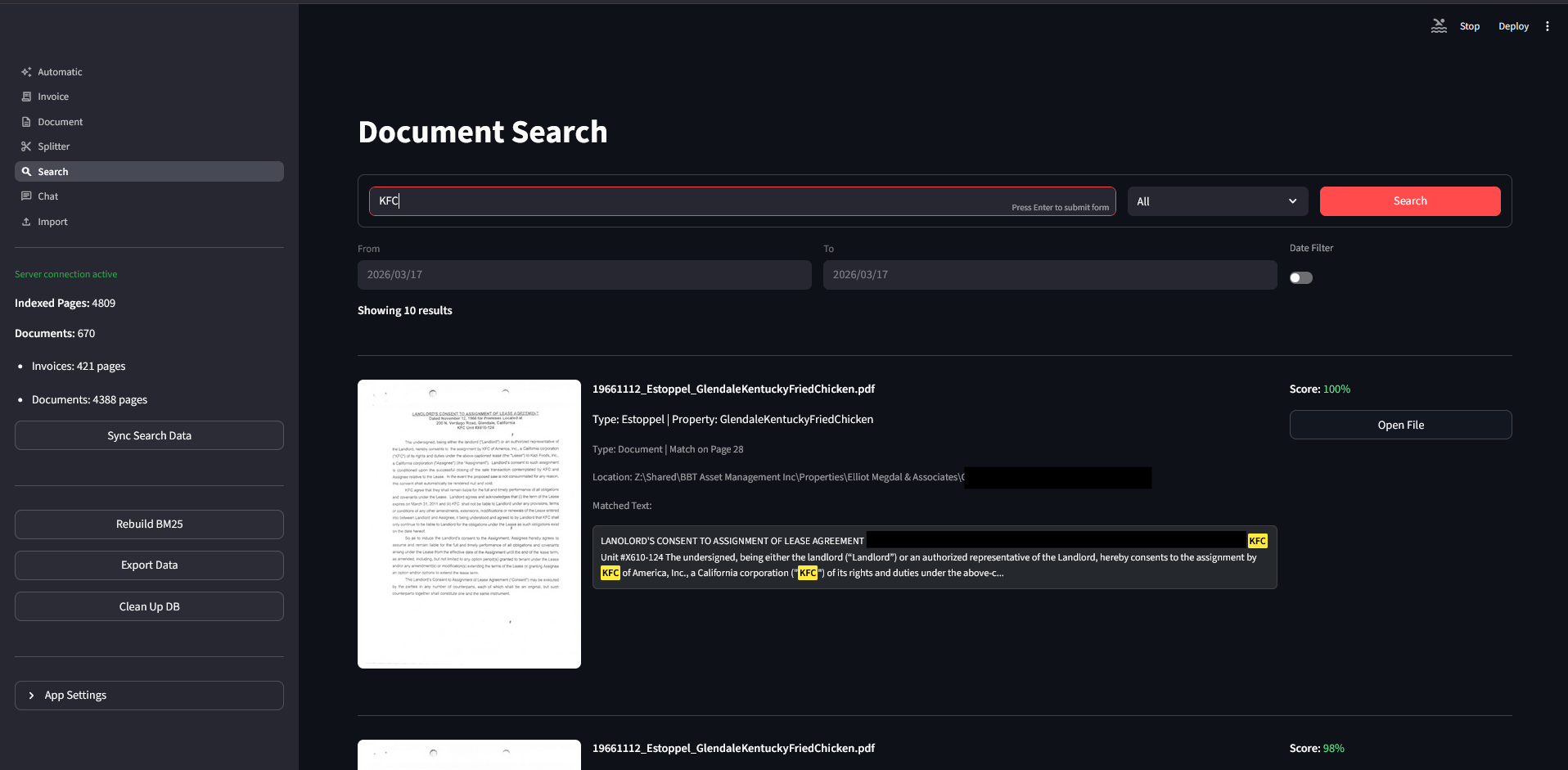
Search uses a hybrid retrieval system that combines vector similarity (semantic meaning) with BM25 keyword matching. Results are ranked by a fused relevance score.
Type your query into the search bar.
Filter by type using the dropdown to the right of the search bar: All, Invoice, or Document.
Press Search or hit Enter to run the query.
(Optional) Enable the date filter by toggling the switch below the search bar. Set the From/To range to restrict results to documents whose filename date falls within that window. Documents without a parseable date are still included.
Each result card contains:
| Element | Description |
|---|---|
| Thumbnail | Preview of the matched page. Click to open a full page preview dialog with page navigation. |
| Filename fields | Parsed from the filename — property, vendor, and invoice number for invoices; doc type and property for documents. |
| Type & page | Document type badge and which page matched the query. |
| Location | Server file path where the document is stored. |
| Matched text | Snippet of OCR text with search terms highlighted in yellow. |
| Score | Relevance score, color-coded: green (70%+), orange (40—69%), red (below 40%). |
| Open File | Launches the PDF from the server in your default viewer. |
Click Load More Results at the bottom to fetch additional matches.
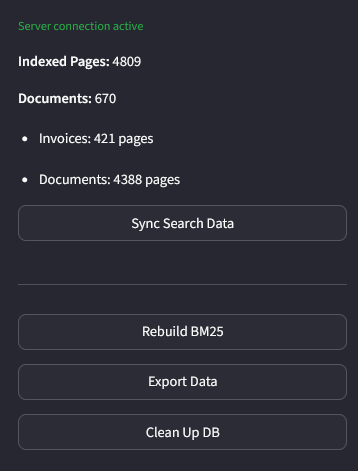
The sidebar shows a green Server connection active label when the server is reachable (or a red warning if not), followed by index statistics: total indexed pages, total documents, and a breakdown by type. If the old server data source is active, its page count appears separately.
| Button | Action |
|---|---|
| Sync Search Data | Pulls server records into your local index and pushes local-only records back. Only visible when connected. |
| Rebuild BM25 | Rebuilds the keyword search index from ChromaDB data. Run after syncing or if keyword results seem stale. |
| Export Data | Exports the full index to a JSON file for backup or inspection. |
| Clean Up DB | Scans for entries pointing to missing or local-only files and offers to remove them. Only visible when connected. |
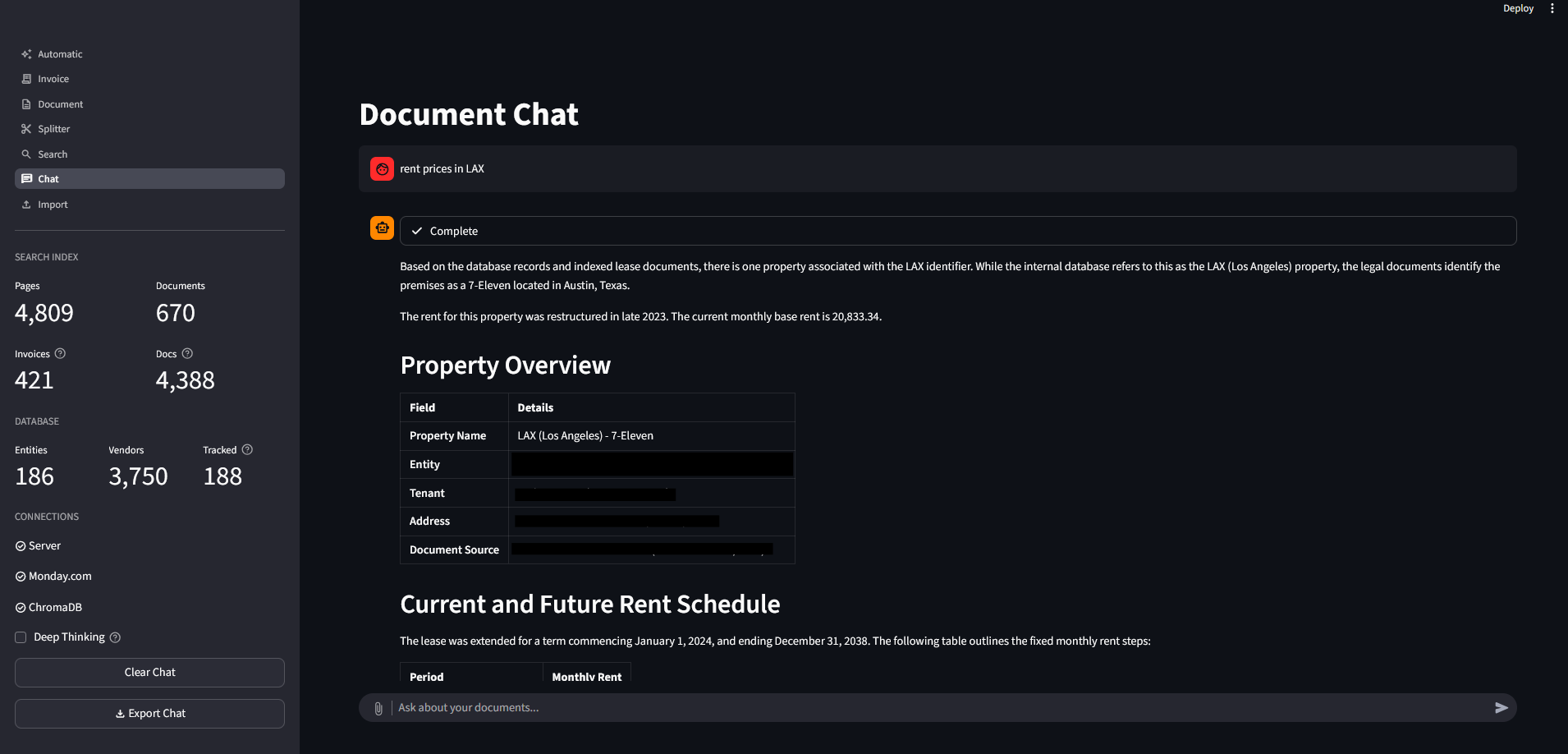
Document Chat is an AI assistant that plans multi-step workflows automatically based on your question.
Intent classification — Gemini analyzes your question and plans which data sources to query and in what order.
Retrieval — For document queries, it expands your question into multiple search queries, runs hybrid search, and fuses results using Reciprocal Rank Fusion (RRF).
Reranking — Large result sets are filtered by an LLM reranking pass to remove noise.
Answer generation — Gemini reads the retrieved content and generates a response with full conversation history for context.
Every response shows a collapsible processing steps status bar. While running it displays each step live; when finished it collapses to a checkmark with “Complete.” Expand it to see which sources were queried, how many documents were found, and the full workflow plan.
The chat pulls from five sources and combines them automatically when a question spans multiple.
Documents
Searches the vector index of OCR’d PDF pages. Use for anything written in a document: amounts, dates, terms, account numbers, lease clauses, notice content.
Database
Queries SQLite tables (entity, vendor, mortgage, invoice_tracker). Use for structured lookups: vendor lists, entity/property info, owner/manager details, utility flags.
Monday.com
Reads the AP board for invoice workflow: status, due dates, paid dates, recurring flags, group assignments. Also reads the M&O board for task notices.
Upload
Reads a file you attach to the chat. Use for reconciliation, comparison, or analysis of external data against your system.
Code
Runs Python in a read-only sandbox with pandas, SQLite access, and data from prior pipeline steps. Use for calculations, aggregations, charts, and visualizations.
The chat input bar sits at the bottom of the page. On the left is a paperclip icon for attaching files, and on the right is a send arrow. Type your question and press Enter or click the send arrow.
Click the paperclip to attach a file before or while typing your message. Accepted types: PDF, CSV, Excel (.xlsx/.xls), and TSV.
The system knows to use the uploaded file when you reference “the file,” “the spreadsheet,” “the register,” or similar language. You can also just attach a file without typing anything and it will analyze the contents automatically.
Single-source queries that search documents, the database, or Monday.com directly.
The system automatically chains sources when your question requires it. For upload queries, attach a file first using the paperclip.
Analytical queries that run Python in the sandbox. When financial data lives in documents rather than the database, the system extracts it from PDFs first then passes it to code.
When you ask for data across many documents in a tabular format, the system automatically switches to bulk mode. It casts a wider search net, processes documents in batches, and produces a downloadable CSV.
For example: “Give me a CSV of all vendor invoice amounts for 2024” or “Extract account numbers from all SCE invoices.”
Formatted Tables
Responses often include markdown tables for structured data like property overviews, rent schedules, vendor lists, and invoice summaries.
Referenced Files
Expandable list of documents the AI used. Shows filename, type, matched page, relevance score, and server path. Click Open to launch the file.
Download CSV
Appears when the response includes tabular data. Downloads the extracted data as a CSV file with a generated filename.
Export Response
Downloads the individual question and response as a formatted PDF.
Retry
Appears on the most recent response. Reruns the full pipeline for the same question, which can produce different results.
Charts
When the code execution step generates a visualization, it renders inline below the text response.
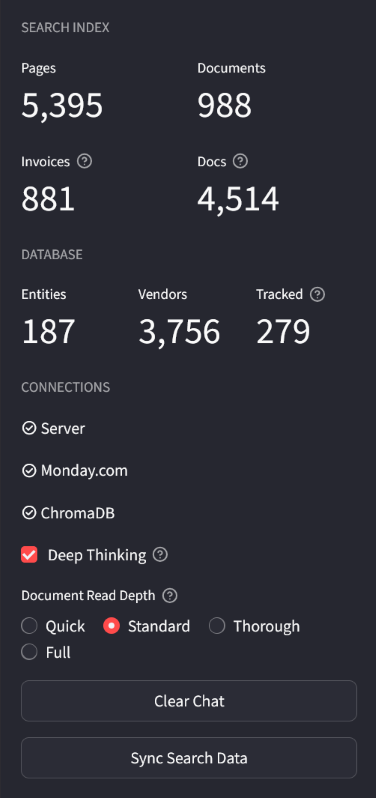
The sidebar shows system status at a glance.
| Section | What it shows |
|---|---|
| Search Index | Pages, documents, invoice count, and document count from the vector database. |
| Database | Entity, vendor, and tracked invoice counts from SQLite. |
| Connections | Status indicators (checkmark or X) for Server, Monday.com, and ChromaDB. |
| Deep Thinking | Checkbox that increases reasoning depth for all Gemini calls. Useful for complex questions; responses take longer. |
| Document Read Depth | Controls how much OCR text per page the AI reads. Four presets: Quick (minimal text, fast), Standard (balanced, default), Thorough (more text, better for detailed extraction), and Full (entire document, no truncation). Higher settings improve accuracy on long or dense documents but use more tokens and may require additional processing batches. |
| Attached File | Name and size of the currently uploaded file, if any. |
| Clear Chat | Resets the conversation, clears the attached file, and resets token tracking. |
| Export Chat | Downloads the full conversation as a formatted PDF. Appears after at least one exchange. |